Mango9 Builder Studio
Preview vs production
Know which environment you are changing and which version customers can see.
Mango9 separates development from production so you can build and review changes without altering the live customer app.
Development is your workshop. Production is the approved release customers depend on. They may show different versions on purpose: Studio can contain tomorrow's work while the live address continues serving yesterday's stable release.
Always identify the environment before troubleshooting or operating it. A successful Preview does not prove a production credential is configured, and a production restart does not wake the development VM. The project pages name the environment and expose the appropriate controls.
Example: Fix a mobile menu in Preview and let the team review it. Customers keep the existing production menu until an authorized person publishes the new version.
| | Development Preview | Production |
|---|---|---|
| Purpose | Build, inspect, and test current work | Serve the approved live release |
| Changes | Can update during a build | Changes only when you publish |
| Availability | Can sleep and warm up | Managed as a live release according to its hosting type |
| Address | Project preview address | mango9.app address and optional custom domain |
| Data | Development/test context | Production database and real customer data |
| Recovery | Project versions | Deployment history and rollback |
Preview
Preview shows the latest development state. It may refresh during a build. A sleeping development environment shows a warm-up state on first access and should transition to the app when it is ready.
Use Preview to test workflows and responsive layout, not as the address you give customers.
Preview can use sample data, development credentials, and a server that sleeps when idle. It may refresh several times during active work. Wait for the completion card before treating an intermediate render as final, then test the important route interactively.
Because Preview is for development, it can reveal errors and tools that should never be part of the customer experience. Report those errors with the project and route, but do not publish simply to see whether production hides them.
Example: Create a sample lead in Preview, verify its detail page, and delete the sample if needed. Use the production address only after the feature is published and connected to production data.
Development Cloud
Development Cloud shows the infrastructure behind each project workspace. It lets you distinguish normal sleep from an unavailable application and choose a narrow recovery action. The server and development database have separate status because one can be healthy while the other needs attention.
Opening Studio normally wakes a sleeping project automatically. Use manual controls when you deliberately want to wake, refresh, or restart a selected development environment. Confirm the project card before pressing a disruptive control.
Example: A project card says Asleep and Database Checking. Choose Wake server and wait. Do not restart every online project in the account.
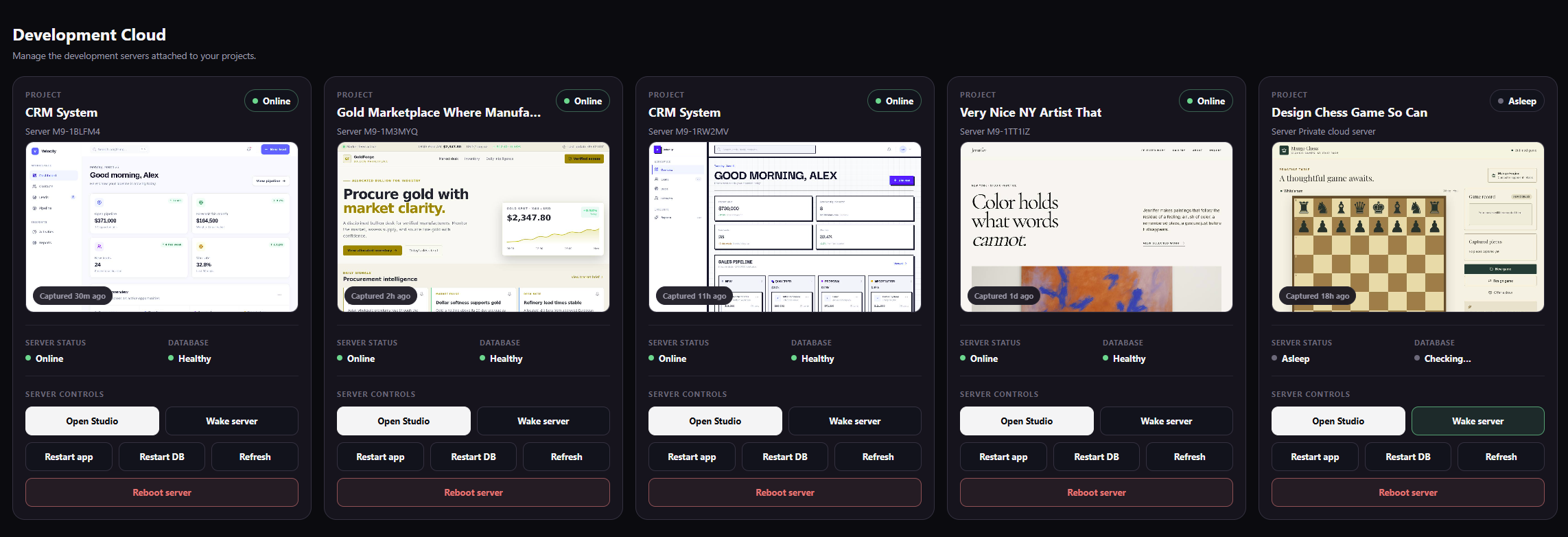
Development Cloud shows the private development server and database behind each project. A sleeping server saves resources and wakes when you open the project or request it directly.
Open this project's full Chat and Preview workspace. Use it when you want to continue the conversation, send a build, or interactively review the development app. Start an asleep development server without opening Studio first. Leave the status time to advance from starting to online rather than pressing Wake repeatedly. Restart only the project application process when the server is online but the app itself is unresponsive. This is narrower than rebooting the whole development environment. Restart the development database only when its status or evidence points to a database problem. A blank page or visual defect alone is not a reason to restart the database. Fetch the latest server, app, and database state without intentionally restarting anything. Use it after a wake or recovery action to confirm the current result. Restart the entire development VM, including more services than the app alone. Use this last, after the selected project is confirmed and narrower controls have not solved an infrastructure-level issue.
An Asleep development server is not a failed project. Open Studio or choose Wake server and allow the warm-up to finish.
Production
Publishing creates or updates an independent production release. Static projects are prepared for edge/CDN hosting. Dynamic projects run on production compute and may require a database.
Subsequent development changes do not appear in production until you choose Publish New Version.
The live release has its own address, deployment history, environment variables, database relationship, and operational state. Static production can be served from the edge, while dynamic production uses a running application environment. Production Cloud explains which kind the selected app uses.
Example: Editing the Studio homepage does not change
crm.example.com. Publishing the approved development version updates that customer address.
Safe release routine
- Finish and review the focused build.
- Try the main workflow in Preview.
- Confirm environment variables and database needs.
- Publish.
- Open the production address in a new tab.
- Test the critical path without using development-only sample assumptions.
Include one realistic success path and one important failure or permission path. Test in a separate browser session when authentication is involved so your development login does not hide a customer-facing issue. Record the deployment version if the release needs follow-up.
Example: After publishing a member portal, sign in as a normal member—not the account owner—open a statement, and confirm an unauthorized admin page remains inaccessible.
Domains cannot be assigned to an unpublished project. You may buy and park a domain first, then assign it after the project is live.