Mango9 Builder Studio
Mango9 documentation
Build, improve, publish, and manage your app—one clear step at a time.
Mango9 turns an idea you can describe into an app you can use. You can talk through an idea, build it, watch the result in Preview, and publish it when you are happy.
You do not need to arrive with a technical specification. Start with the person you want to help, the task they need to finish, and what a successful result should feel like. Mango9 guides the idea into a working first version, while you remain in control of what changes and when anything goes live.
This documentation follows the same practical path as the product: start with a clear request, learn the workspace as you use it, test the result, and only then move into publishing, domains, integrations, or team access. You can read it from beginning to end or jump directly to the job in front of you.
Example: “I run a small repair shop. Build a simple app where staff can create a work order, record the customer and vehicle, update the repair status, and see what is due today.”
Open Studio Build your first app
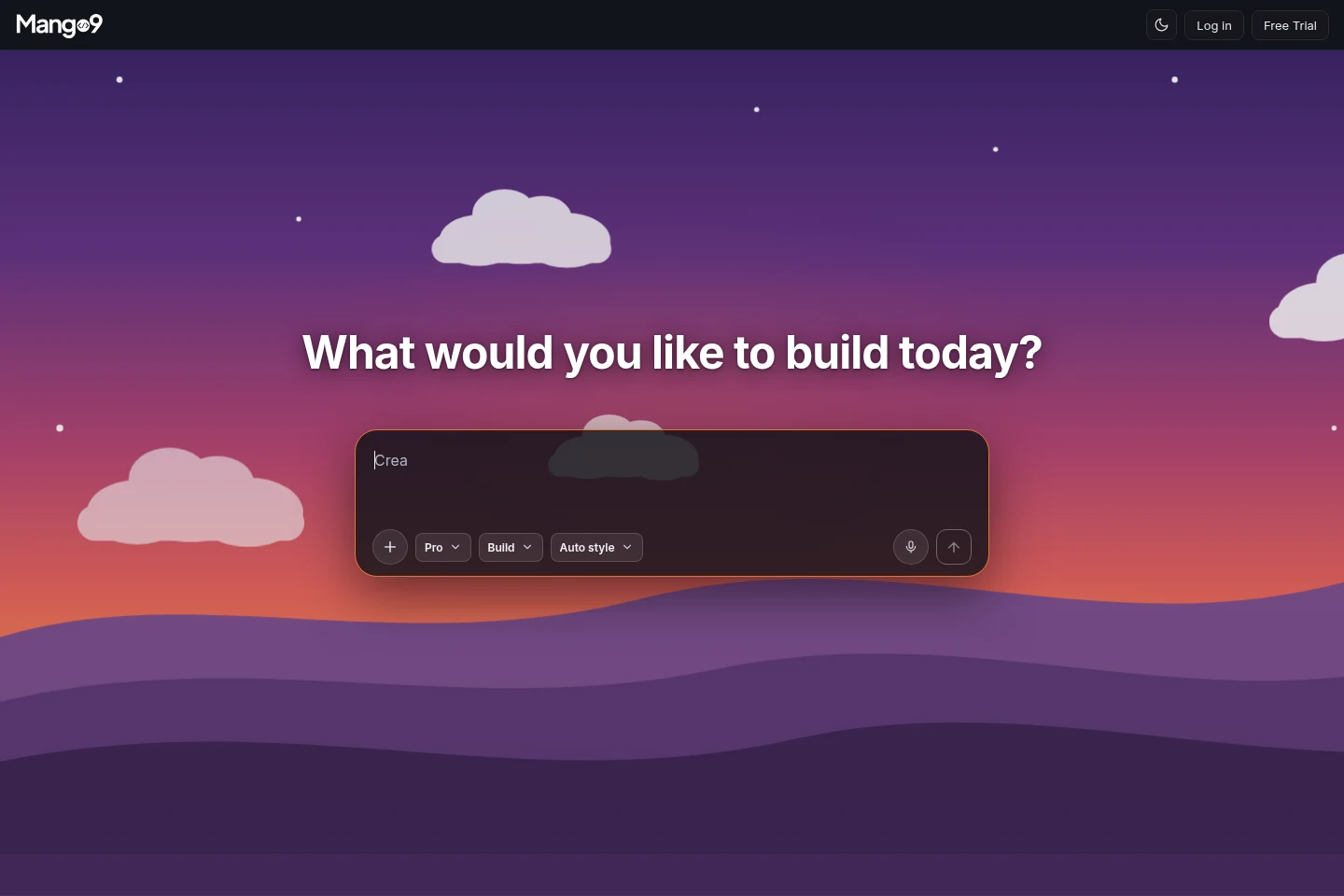
Studio is your starting point. Describe what you want, choose Build, and send.
What would you like to do?
Choose the description closest to what you are trying to accomplish right now. You are not locking the project into a permanent path; these are simply the clearest starting points for common jobs. For example, you may begin with a new app today, return tomorrow to improve one page, and publish only after your team has tested it.
Example: If the app already exists and only the mobile menu feels crowded, choose Change an existing app rather than describing the entire product again.
<Feature title="Start a new app" href="/docs/getting-started/quick-start">Turn one clear idea into a useful first version.</Feature> <Feature title="Change an existing app" href="/docs/getting-started/prompting">Describe the exact result you want and what should stay the same.</Feature> <Feature title="Ask before building" href="/docs/getting-started/ask-vs-build">Discuss an idea without changing your project.</Feature> <Feature title="Make a visual change" href="/docs/build/visual-tools">Point to an element, choose a style, or update the brand.</Feature> <Feature title="Publish for customers" href="/docs/publish/publishing">Move the version you approved from Preview to a live address.</Feature> <Feature title="Use your own domain" href="/docs/publish/domains">Search for a name, buy it, park it, or connect it to a live app.</Feature>
Your first 15 minutes
Your first session should produce something you can see and try, not a perfect final product. A small end-to-end workflow teaches you more than a large list of disconnected features because you can immediately notice what is missing, confusing, or especially useful.
As the first version appears, use Preview like a real user. Enter a sample record, move through the main pages, and check the phone layout. That hands-on review gives your next request a concrete target instead of relying on guesswork.
Example: For a booking app, complete one appointment from service selection through confirmation. If that path works, the next build can focus on reminders, cancellations, or staff scheduling.
Say who the app is for and what they should be able to do first. Choose the closest answers. These decisions guide the first version. Progress appears in Chat while the working app takes shape in Preview. Open the important pages, press the buttons, and check desktop and mobile. Use a recommendation or type one focused follow-up request.
A strong first request
Build a simple booking app for a small beauty salon. Customers should see
services, choose a team member, pick an available time, and receive a
confirmation. The owner needs a daily appointment view. Make it warm,
professional, and easy to use on a phone.
Cool things you can do
These tools become most useful when they are connected to a clear outcome. Select is helpful because it identifies the exact visible element. Attachments are helpful because they show a direction. Versions are helpful because they let you compare a new result with a known good one. None of them requires you to explain implementation details.
Use the narrowest tool that communicates the idea well. A short prompt plus a selected button is often clearer than a long paragraph describing where the button appears. A screenshot plus one sentence about what to borrow is more reliable than asking Mango9 to copy an entire design blindly.
Example: Select the crowded mobile filter button and write, “Keep this in the same place, but make it easier to tap and prevent it from covering the last result.”
Use Ask to explore an idea, understand the project, or compare choices without intentionally changing the app. Choose Build when you are ready for a saved project change you can review in Preview. Select something in Preview when one visible area needs attention. The selection identifies the location; your prompt explains the desired result, device, and surrounding behavior that must remain. Attach a screenshot, document, or website link when it communicates something words alone cannot. Say whether it supplies approved content, visual direction, an asset, or evidence of a defect. Review the desktop, mobile, or focused capture chosen to prove the visual work. Compare it with your request, then try the real interaction in Preview before approving the result. Inspect the saved state and change list associated with an earlier result. Restore deliberately when that whole version is the baseline you want, rather than asking Mango9 to reconstruct it from memory. Release the development version you approved through the protected Publish flow. After the production app is healthy, connect a memorable domain or keep a purchased name parked until you are ready.
Building changes the development project. Publishing, buying a domain, changing billing, and managing team access remain separate actions that you control.