A short brand introduction
Build a clear opening, introduce the service or product, and close with a next step for the viewer.
Get startedVideo & voice
Create video, develop narration, and bring your scenes together in a finished sequence. Start with an idea and shape every moment.
Explore Mango9 Create
Develop the sequence, generate the material, and listen as carefully as you watch. Motion and narration belong to the same creative process.
01 / Video & voice
Turn a visual direction into video and add narration where the message needs a voice. Choose the inputs, duration, and settings supported by your selected model, then review completed media before assembling the sequence.
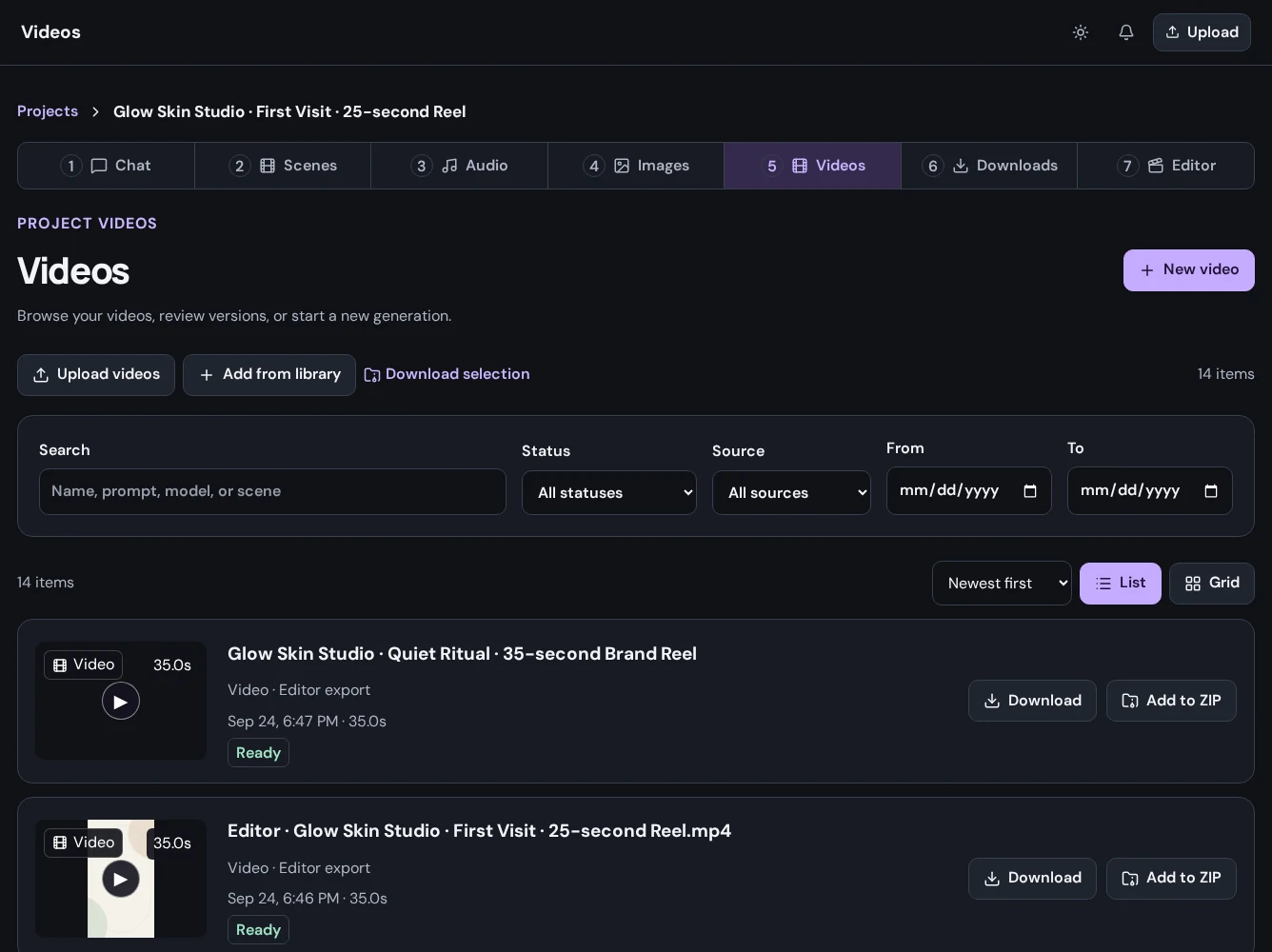
02 / Video & voice
Break a larger story into scenes with their own visual and audio requirements. Keep the opening, supporting moments, and closing call to action organized so the whole piece has a clear direction.
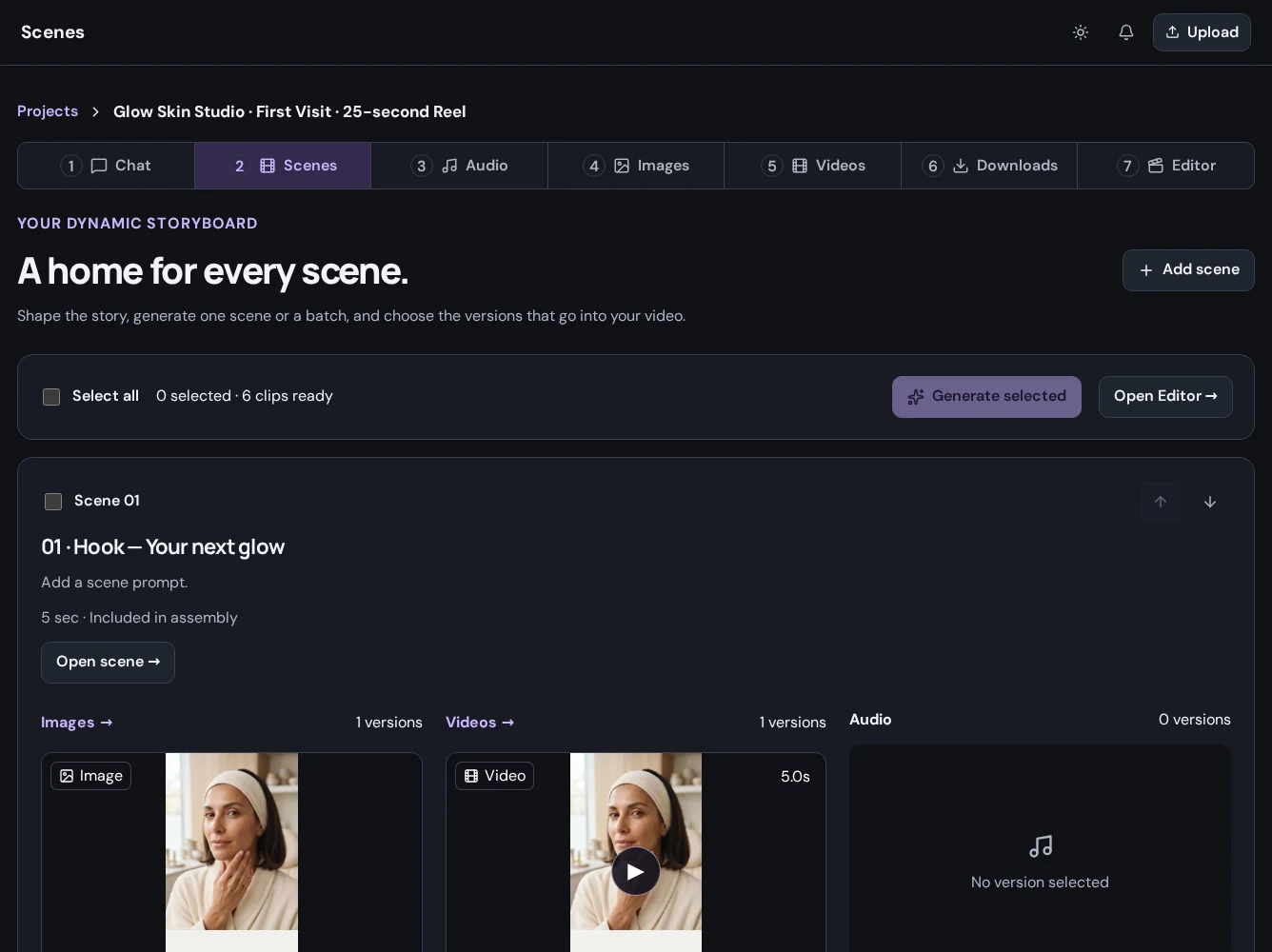
03 / Video & voice
Bring completed video and audio into the editor. Adjust the timing, listen to the narration against the picture, and review the opening and closing moments before exporting.
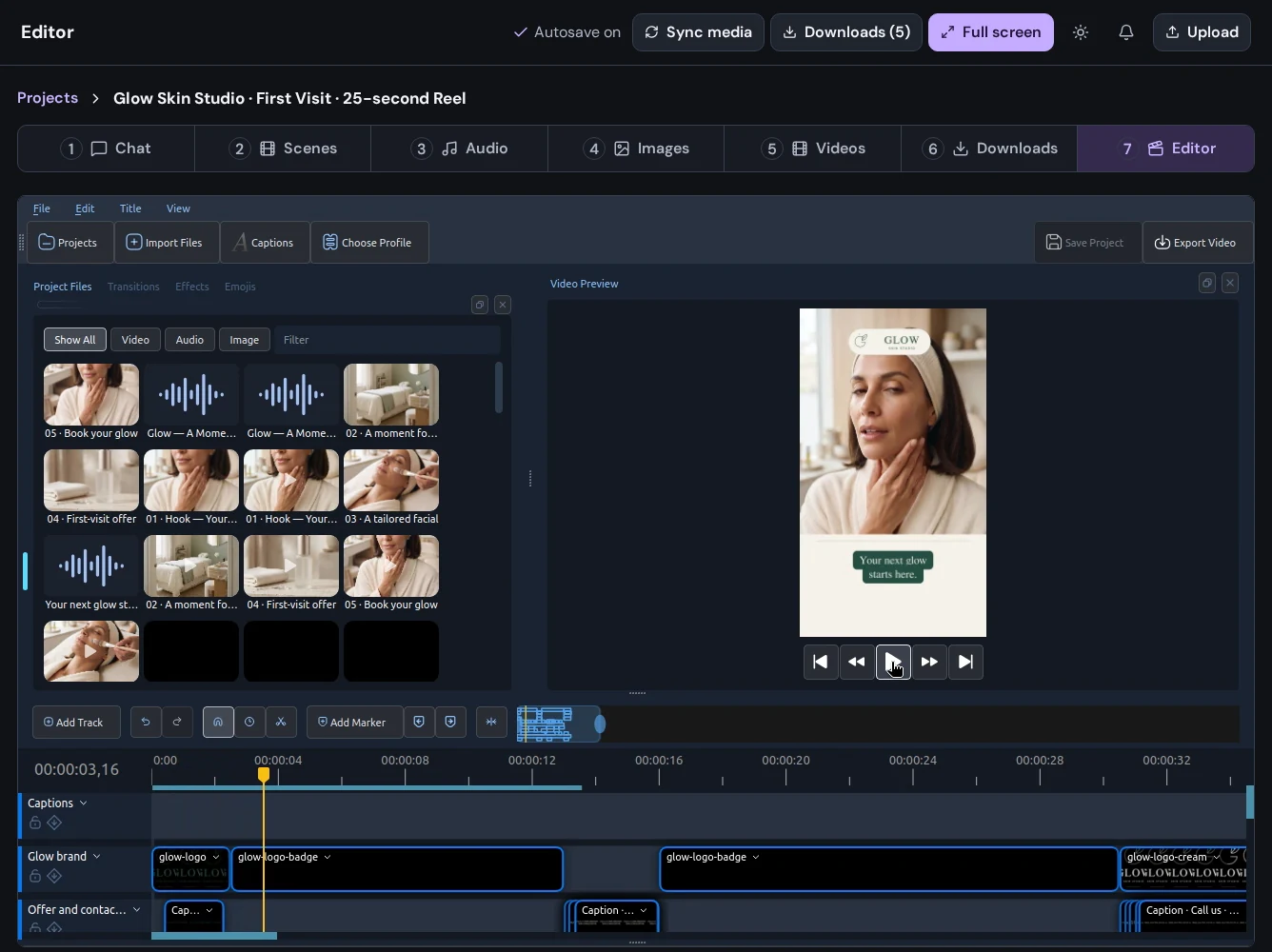
04 / Video & voice
Download an individual image, video, or audio result, or export the sequence you assembled in the editor. Review the finished file before sharing it, and return to the project when the campaign needs its next version.
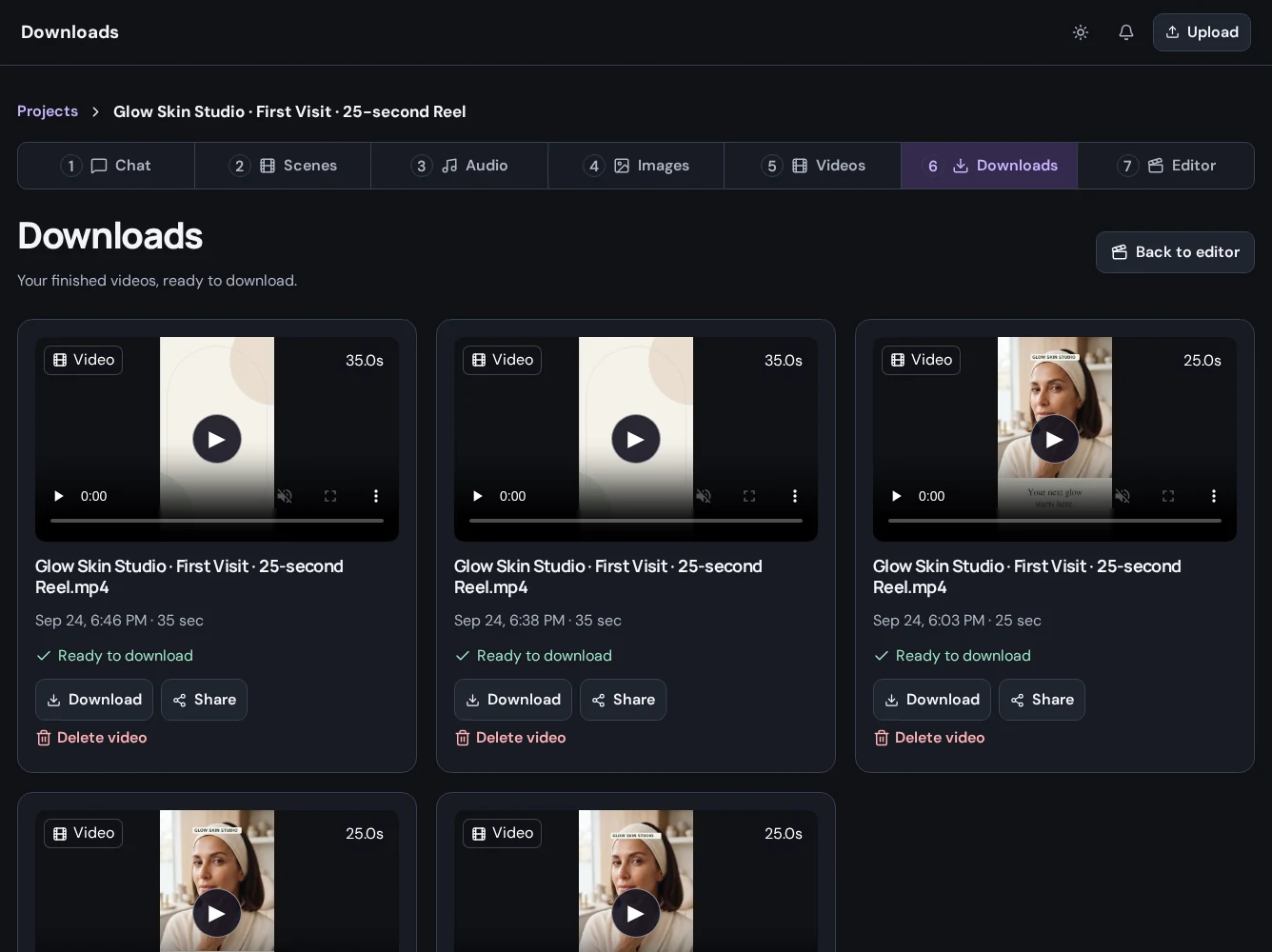
Put it to work
Build a clear opening, introduce the service or product, and close with a next step for the viewer.
Get startedPlan a script, generate narration with available voice controls, and match it with useful visual moments.
Get startedChoose a format for your audience, refine the pacing, and review the final file before posting.
Get startedA little more detail
Find the practical next step in the Create guides, or talk to Mango9 about your workflow.
Check the model selector in Create. Input types, supported duration, and other controls depend on the selected model and current availability.
Yes. Upload supported audio to your project and use it with your other media. Listen to the result in the edit to check pacing and levels.
Yes. The API supports transcription reviews with word timings and SRT/VTT output. Speech-edit jobs can propose interview edits or English caption translations for review; an edit plan does not automatically change the timeline.
Pricing varies by model, output type, and settings. Choose a model in Create to see its pricing, and check Billing and Usage for your balance and activity.
Make your next idea happen
Already using Builder? Continue with your Mango9 account.
Explore the Create guides