Know your audience
Tell Create who the work is for and what they should understand, feel, or do after seeing it.
Get startedFrom idea to finished work
A clear path from your first conversation to something ready to use.
Explore Mango9 Create
You can start with a sentence. Add detail as the project takes shape, approve the direction, and review the work at each stage.
01 / From idea to finished work
Enter a prompt on the Create homepage. Central handles signup or login, then returns you to Create with the prompt ready in your new project. Already have a Mango9 account? Use that same account.
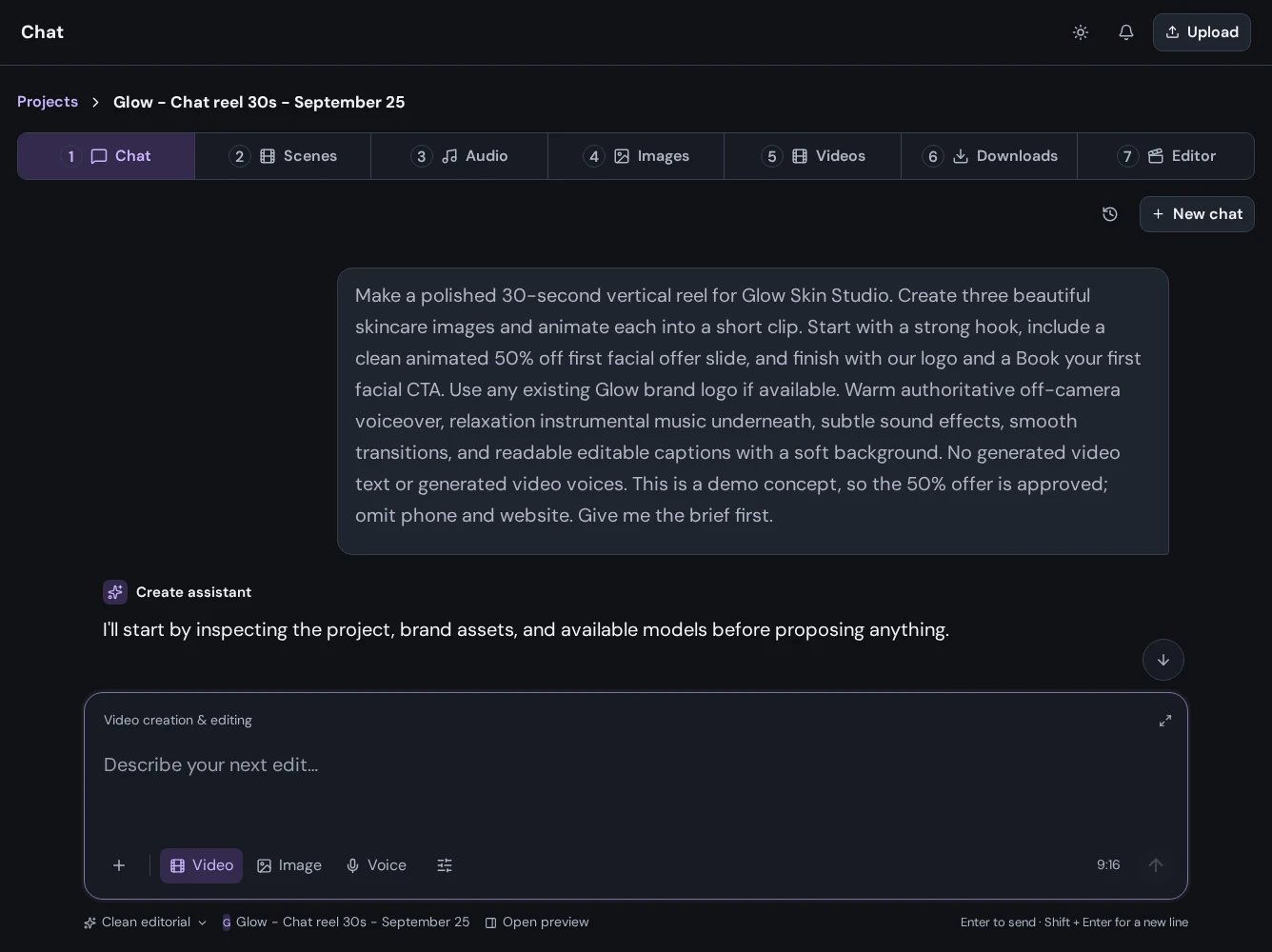
02 / From idea to finished work
Choose the images, video, or voice the project needs. Add references, review model settings and pricing, and confirm the work you want to run. Review completed results before moving on.
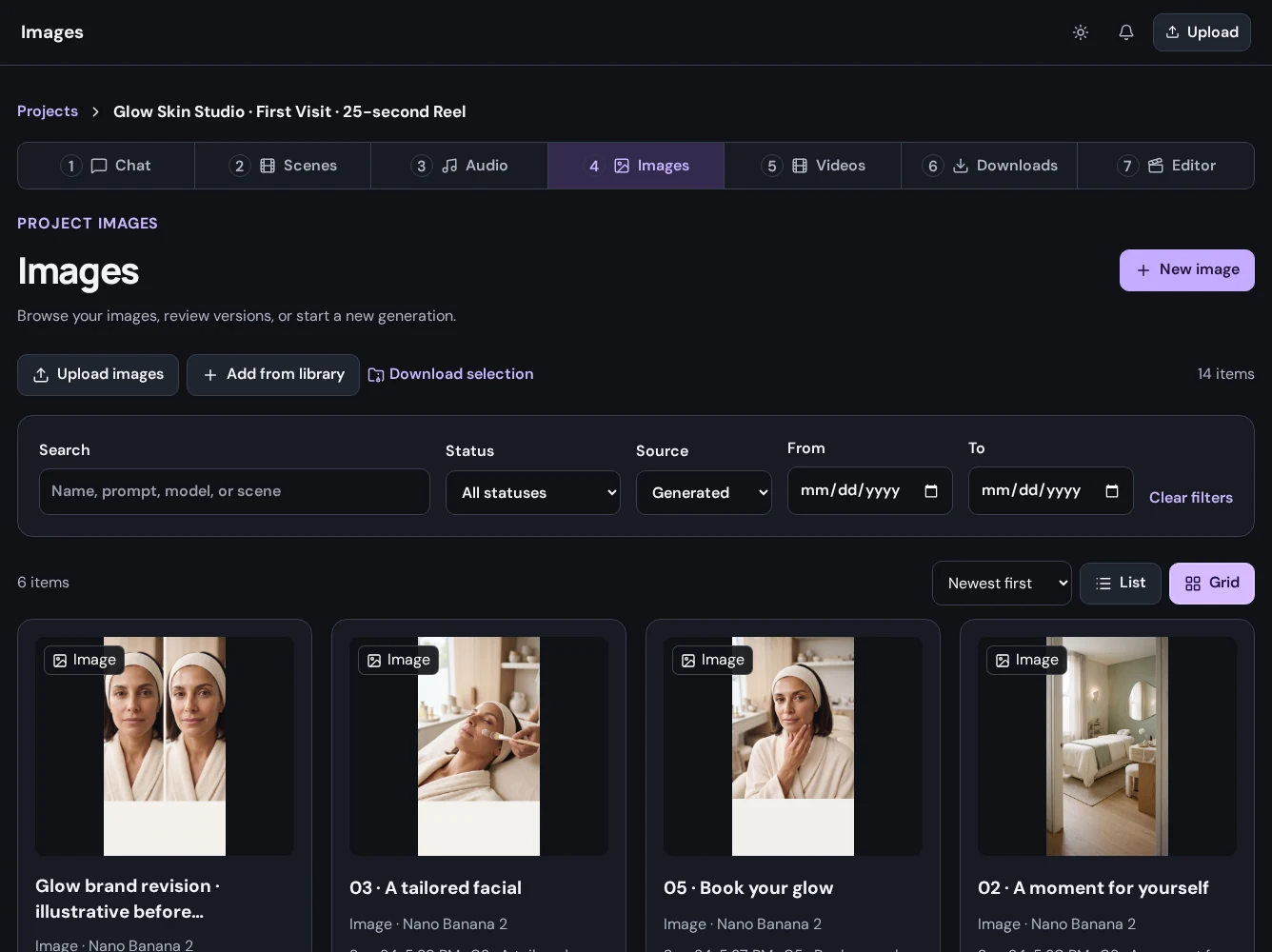
03 / From idea to finished work
Arrange clips, shape the pacing, and bring audio and visuals together. Preview your timeline, refine transitions and captions, and bring new project media into the edit.
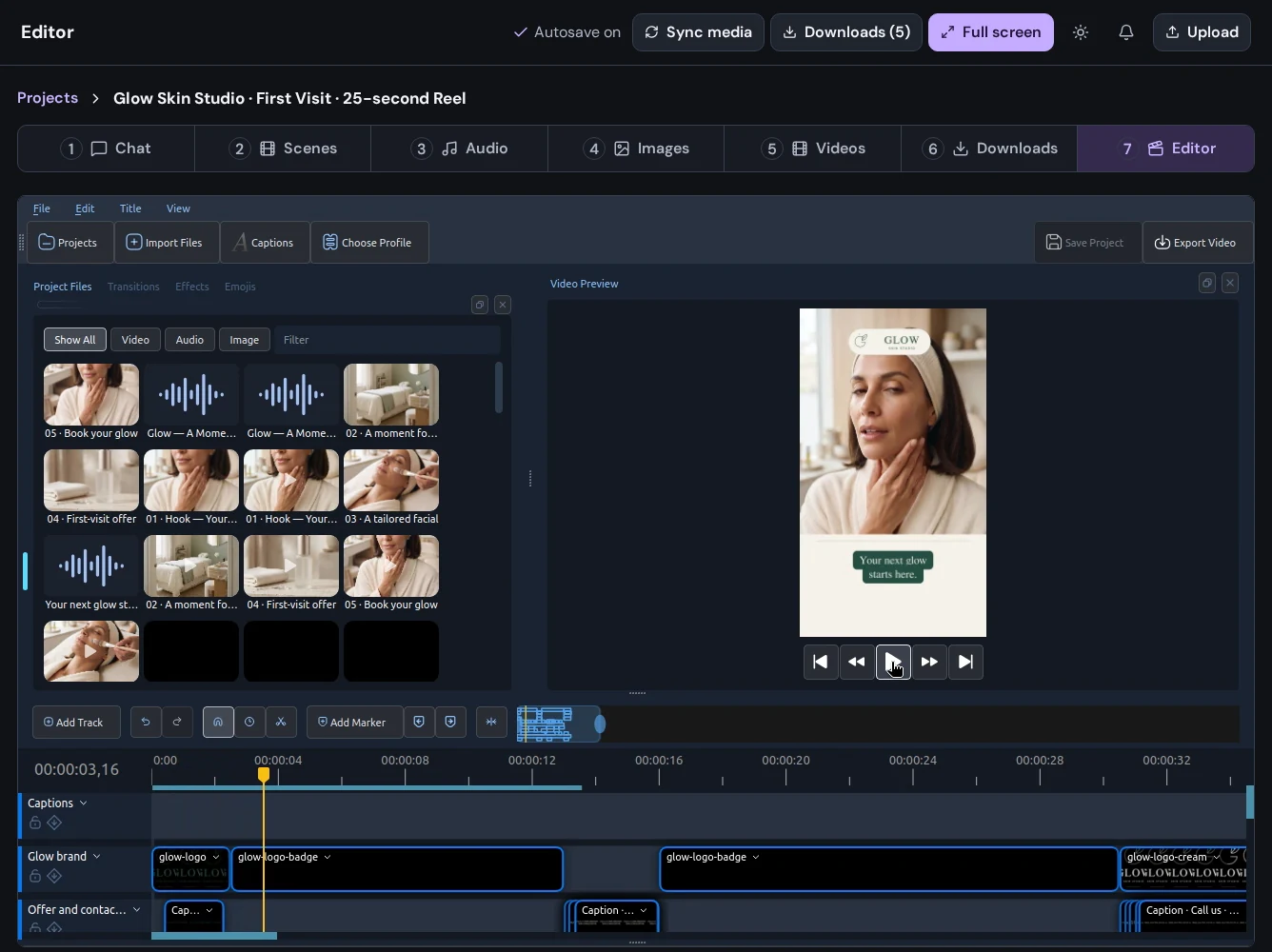
04 / From idea to finished work
Download an individual image, video, or audio result, or export the sequence you assembled in the editor. Review the finished file before sharing it, and return to the project when the campaign needs its next version.
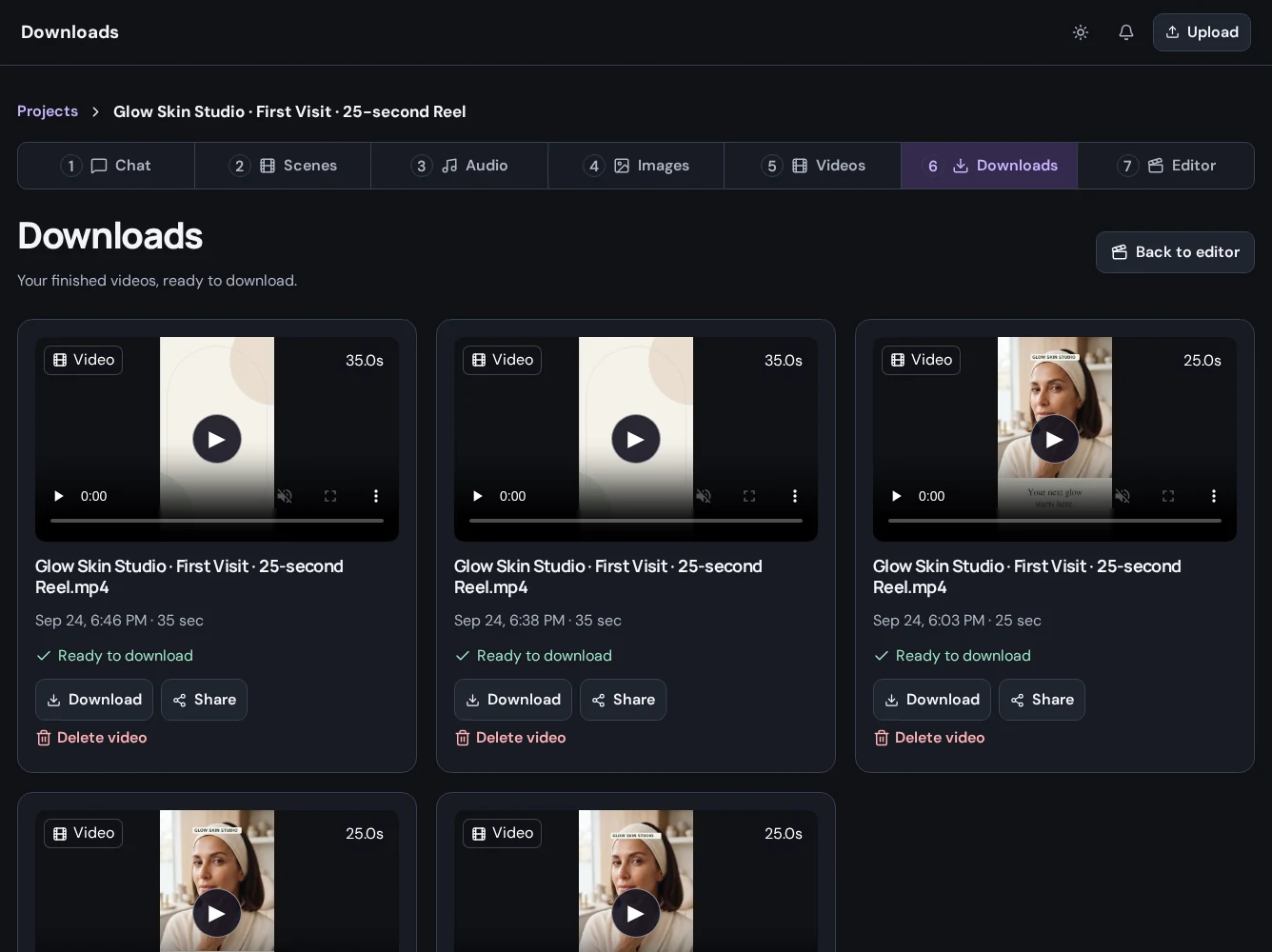
Put it to work
Tell Create who the work is for and what they should understand, feel, or do after seeing it.
Get startedAdd references, a script, a product description, or a few words about the look and tone you want.
Get startedExplain whether you need a still image, a narrated video, or material to finish in your own workflow.
Get startedA little more detail
Find the practical next step in the Create guides, or talk to Mango9 about your workflow.
Builder and Create share your Mango9 account and plan. Sign in with your existing account, or create one to start building apps and making content.
No. You can generate and download an image, work with audio, or edit existing media without building a complete video project.
Open it from Projects to continue the conversation or work with available media. Check asset availability and download or archive important deliverables before they expire.
Pricing varies by model, output type, and settings. Choose a model in Create to see its pricing, and check Billing and Usage for your balance and activity.
Make your next idea happen
Already using Builder? Continue with your Mango9 account.
Explore the Create guides