Campaign concepts
Explore different treatments for a product launch before deciding which visual direction to develop.
Get startedImage generation
Create images from a prompt, work with references, and explore a new version without losing the original. Your project keeps the source material and the results together.
Explore Mango9 Create
Make campaign images, explore a look, or create the stills that will support a video. Keep prompts, references, and results connected to the project.
01 / Image generation
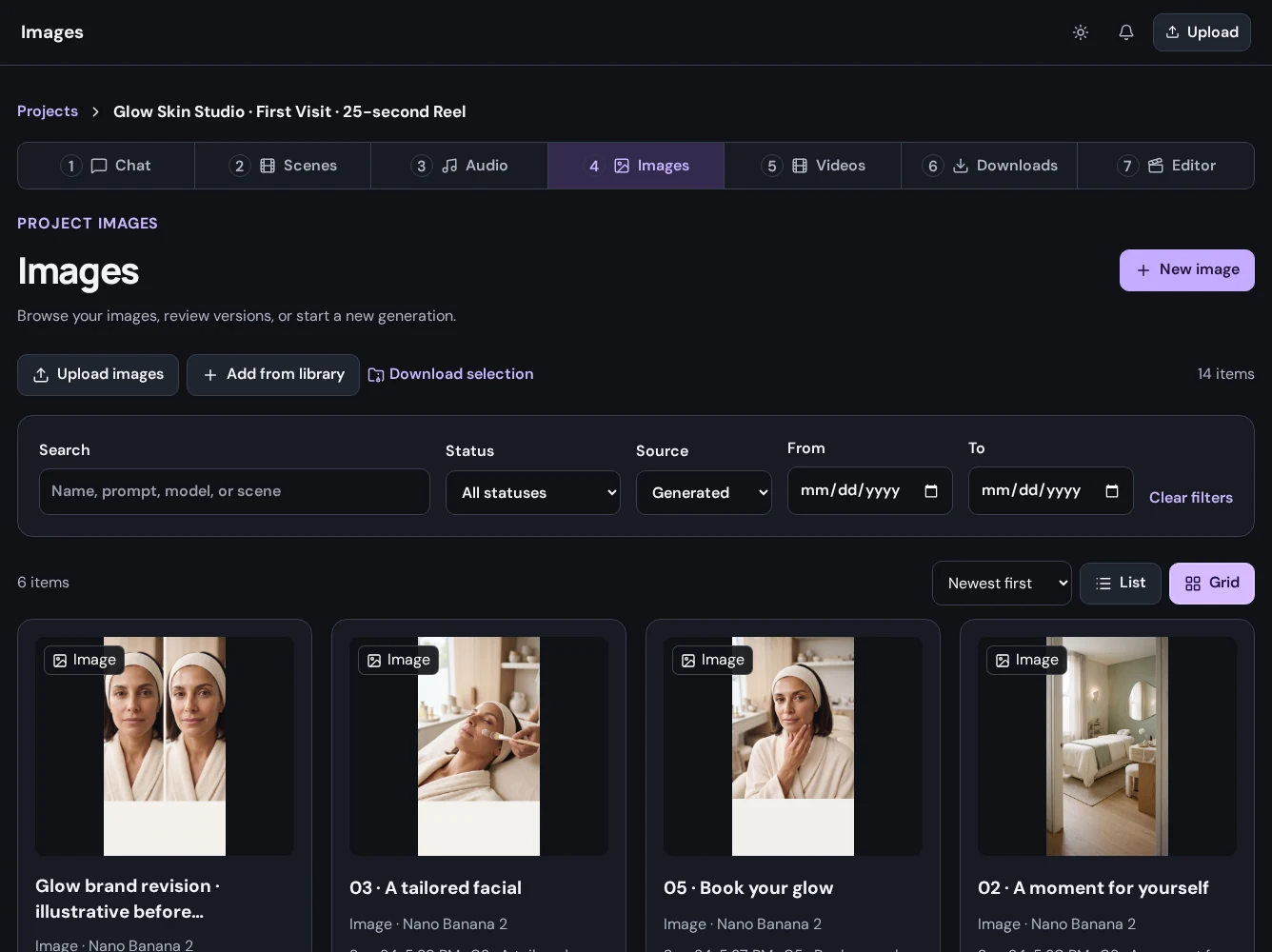
Generate original images, bring your own media, and explore new versions as the concept develops. Review the results together in your project's image library before choosing what belongs in the final piece.
02 / Image generation
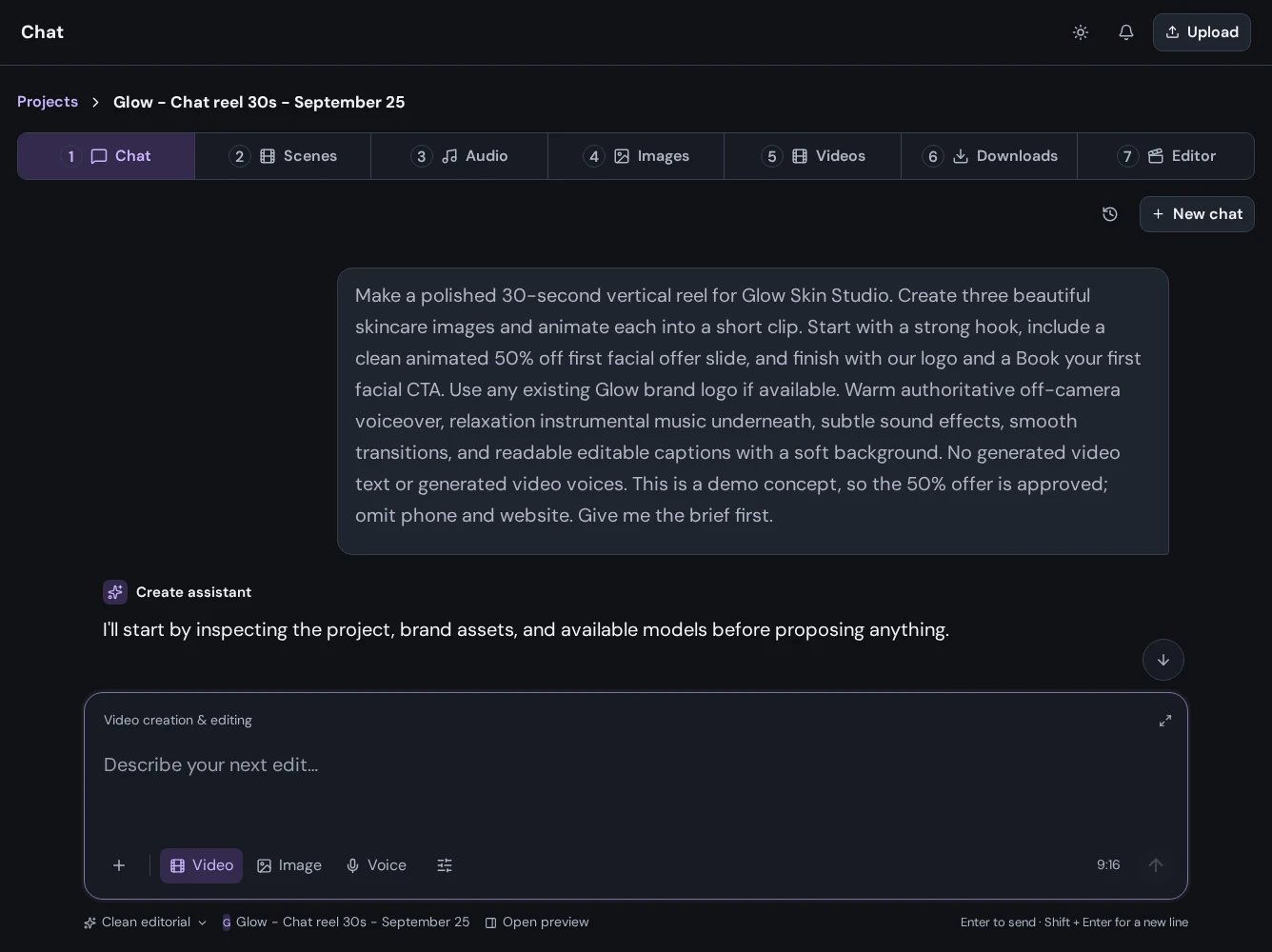
Describe the subject, lighting, composition, mood, and intended use. Add supported references and explain what should stay consistent as you explore the next version.
03 / Image generation
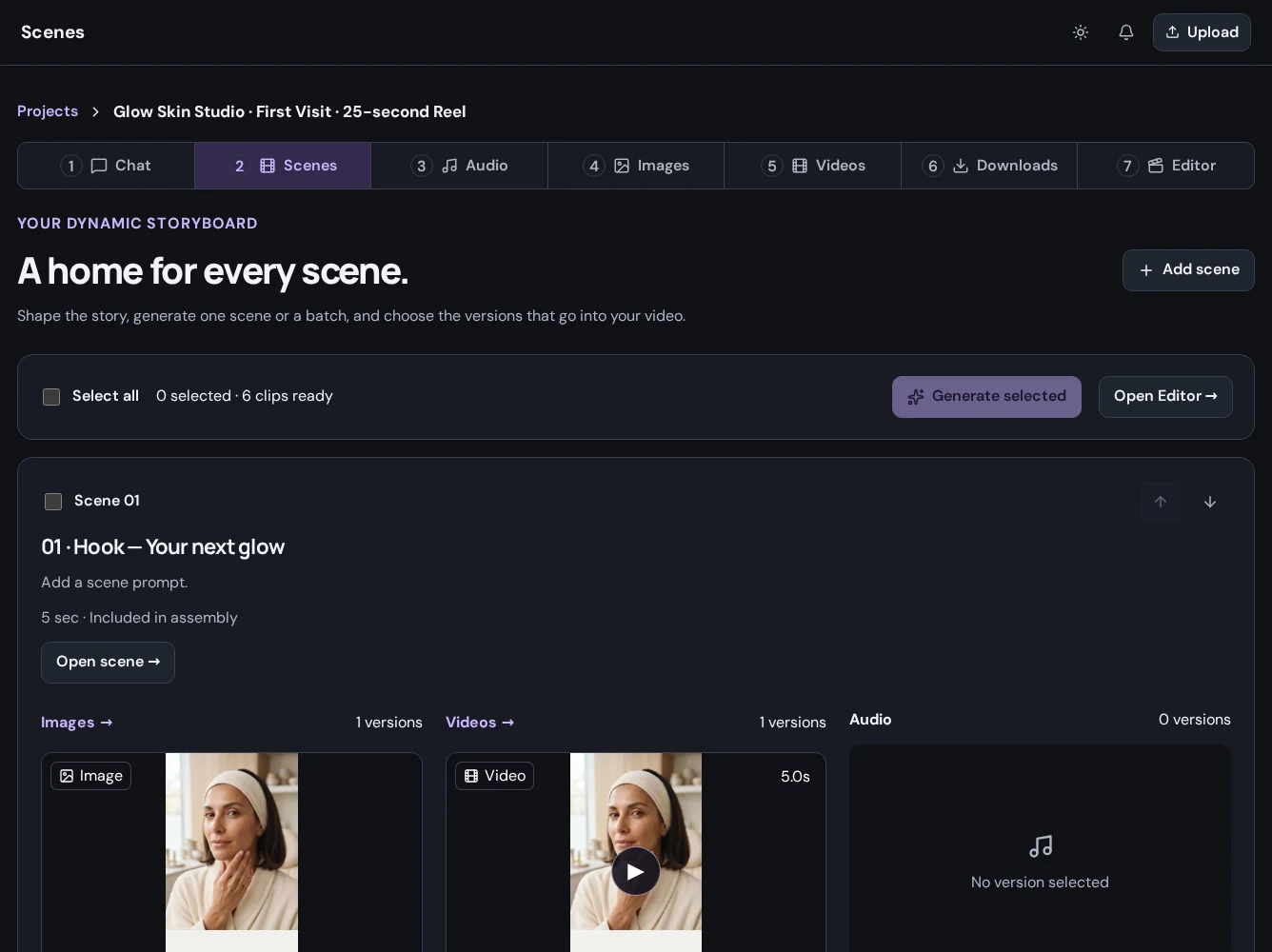
Review generated images alongside your uploaded material. Choose the images that tell the story, associate them with your scenes, and carry them into the editor or a supported video workflow.
Put it to work
Explore different treatments for a product launch before deciding which visual direction to develop.
Get startedCreate images for the opening, supporting scenes, and closing moment of a short video.
Get startedRevise composition or mood as a new result while keeping the earlier generation available for comparison.
Get startedA little more detail
Find the practical next step in the Create guides, or talk to Mango9 about your workflow.
Supported reference inputs depend on the model you select. Review the available inputs before generating and upload media you have permission to use.
Regenerate as new creates a separate result so you can compare versions. Download or archive the versions you want to keep before their listed expiry.
Yes. Open a completed result in the image library and download the asset directly.
Pricing varies by model, output type, and settings. Choose a model in Create to see its pricing, and check Billing and Usage for your balance and activity.
Make your next idea happen
Already using Builder? Continue with your Mango9 account.
Explore the Create guides