Mango9 Builder Studio
Environment variables
Keep project configuration and sensitive credentials outside public source and chat.
Environment variables give a project configuration at runtime without hardcoding values into the user interface or source files.
They are named settings supplied to the app by its environment. The source can ask for RESEND_API_KEY or DATABASE_URL without containing the actual secret. That makes it possible to rotate credentials, use different development and production services, and keep sensitive values out of browser code.
Not every variable is secret, but every variable should have a clear purpose and scope. Use an account-wide value only when all projects should share it. Use a project-specific value when a credential belongs to one client, one app, or one environment.
Example: Save a shared public support URL account-wide. Save a client's private payment secret only on that client's project.
Common examples:
DATABASE_URL- payment or email API keys;
- webhook signing secrets;
- storage credentials;
- public service URLs;
- feature configuration that differs between development and production.
Add a variable
- Open Console → Environment Variables.
- Select the correct project.
- Add the exact variable name expected by the app.
- Paste the value and save.
- Restart or republish when the page tells you the running environment needs to reload it.
Copy the key exactly, including capitalization and underscores. RESEND_API_KEY, Resend_Api_Key, and RESEND_KEY are different names to an application. A correct secret under the wrong name behaves like a missing variable.
Use the optional note for a safe description such as the provider, environment, or owner. Never repeat the value in the note. After saving, follow the page's reload instruction and test the one feature that depends on it.
Example: Key:
RESEND_API_KEY. Note: “Northstar production email credential, owned by Marketing.” Then publish or restart as instructed and send one test email.
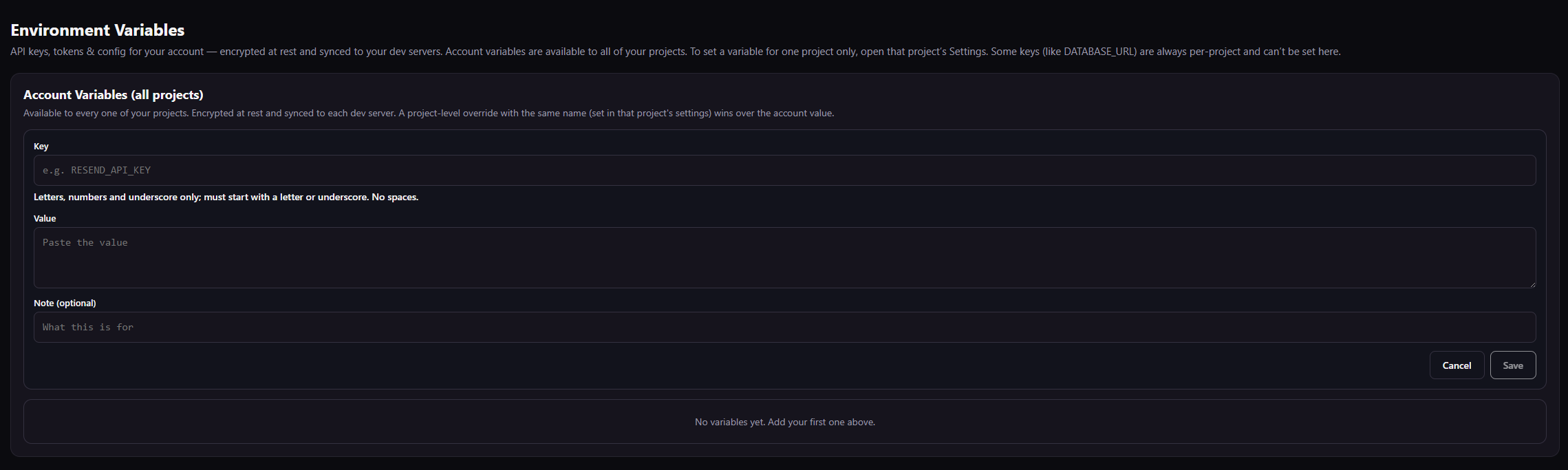
The form tells you whether a variable applies to every project or only one. The secret value stays in the secure field and should never be pasted into chat.
Enter the exact name the app expects, such as RESEND_API_KEY. Capitalization and underscores matter, so copy the approved variable name rather than inventing a similar one. Paste the secret or configuration supplied by the external service. Keep it in this protected field and never repeat it in Chat, source, screenshots, or the descriptive note. Write a safe reminder about provider, purpose, environment, or owner. A useful note helps future rotation without containing the credential itself or private customer data. Encrypt and store the variable in the account-wide or project-specific scope shown on the page. Follow any restart or republish instruction so the running environment receives the new value. Discard the unsaved form without changing the stored environment. Use Cancel when the selected project, scope, key name, or value is not the one you intended.
An account variable is available to all projects unless a project-specific value overrides it. Open one project's Settings when the credential must belong to that project only.
Public and private values
Frameworks often expose variables with a public prefix to browser code. Anything sent to the browser can be inspected by a visitor and must not contain a secret.
Use private server-side variables for credentials. If a service provides both a publishable key and a secret key, store and use them in the roles specified by that service.
A variable name containing PUBLIC is a warning that its value may be bundled into code visitors can inspect. Public keys are only safe when the provider designed them for browser use and protects sensitive operations on the server. Never turn a secret into a public value simply because the browser needs some related feature.
Example: A Stripe publishable key can identify the checkout account in the browser. The Stripe secret key must remain server-side and must never use a public browser prefix.
Refer to variables in a build
Tell Mango9 the name, not the value:
Use the existing STRIPE_SECRET_KEY environment variable in the server route.
Do not expose it to the browser.
This gives Mango9 enough information to connect the code without exposing the credential in the conversation. Name the expected environment and behavior as well: development test, production use, webhook verification, or server-only API call.
Example: “Use the existing
RESEND_API_KEYon the server to send booking confirmations. Show a friendly retry message when the provider is temporarily unavailable.”
Rotation
When a credential is replaced:
- update the saved variable;
- revoke the old credential with its provider;
- restart/redeploy the environment if required;
- test the affected integration;
- do not leave the old value in chat, documents, logs, or source.
Rotate when a credential expires, changes ownership, is accidentally exposed, or reaches the provider's normal renewal date. Keep the old key active only as long as the provider's safe transition requires, then revoke it. Testing the affected workflow proves the new value was loaded.
If a secret appeared in a public place, deletion alone is not enough because someone may already have copied it. Revoke it at the provider, create a replacement with the smallest needed permissions, and update Mango9.
Example: After an email key appears in a screenshot, revoke it in the email provider, save the replacement under the same Mango9 variable name, restart the app, and send a test confirmation.
A missing or renamed variable can break a database, payment, email, or storage workflow. Change only the selected project and verify the affected feature afterward.