Launch a product
Develop a visual direction, explore campaign imagery, and turn the selected assets into a short launch video.
Get startedScenes & storyboards
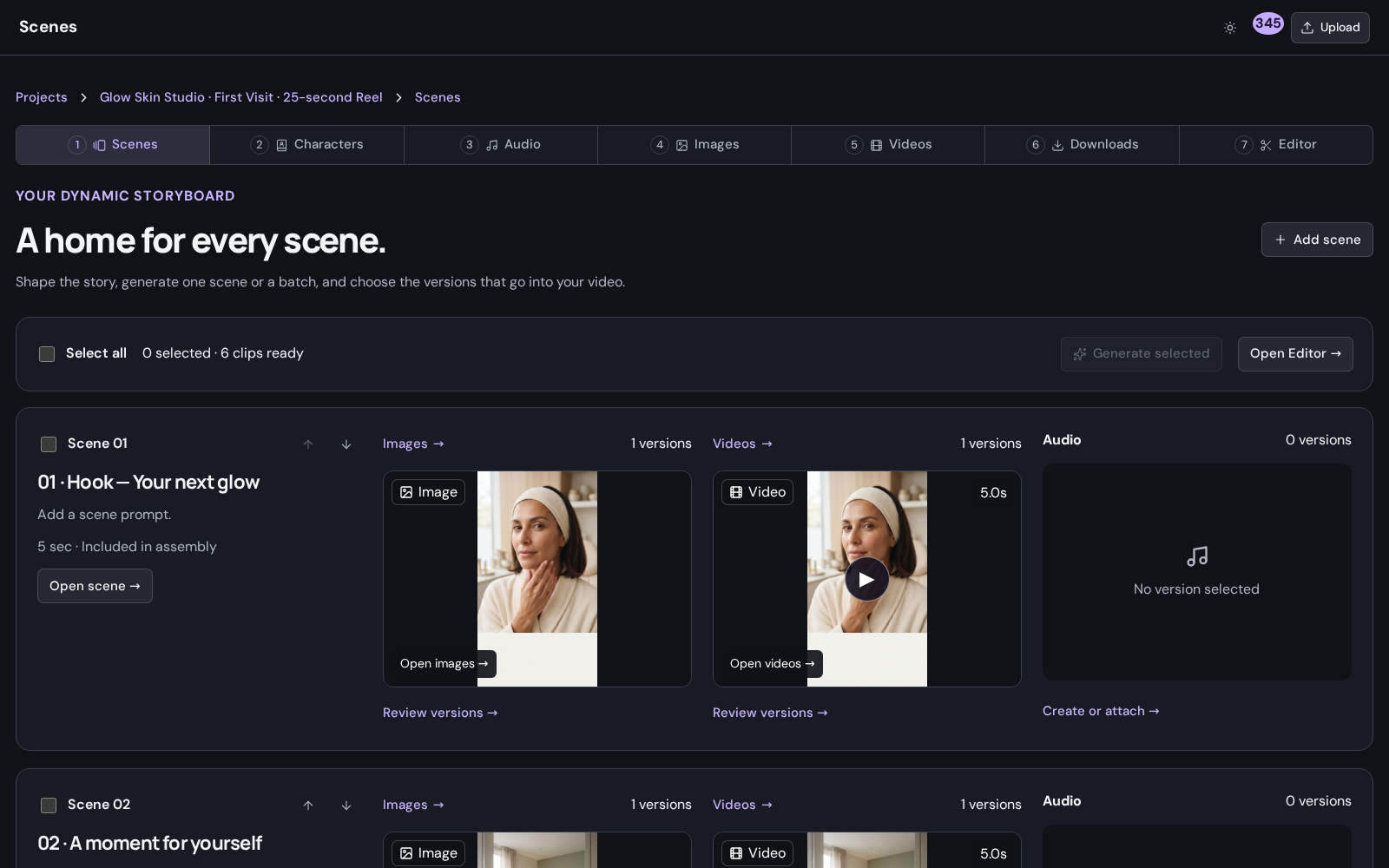
Add scenes, arrange their order, and keep each shot’s image, video, and audio together. Build the sequence one scene at a time and choose the versions you want to use.
Explore Mango9 Create
Your project opens in Scenes. Give each scene a purpose, save its prompts and references, and choose the image, clip, and audio that belong in the final sequence.
01 / Scenes & storyboards
Break a larger story into scenes with their own visual and audio requirements. Keep the opening, supporting moments, and closing call to action organized so the whole piece has a clear direction.
02 / Scenes & storyboards
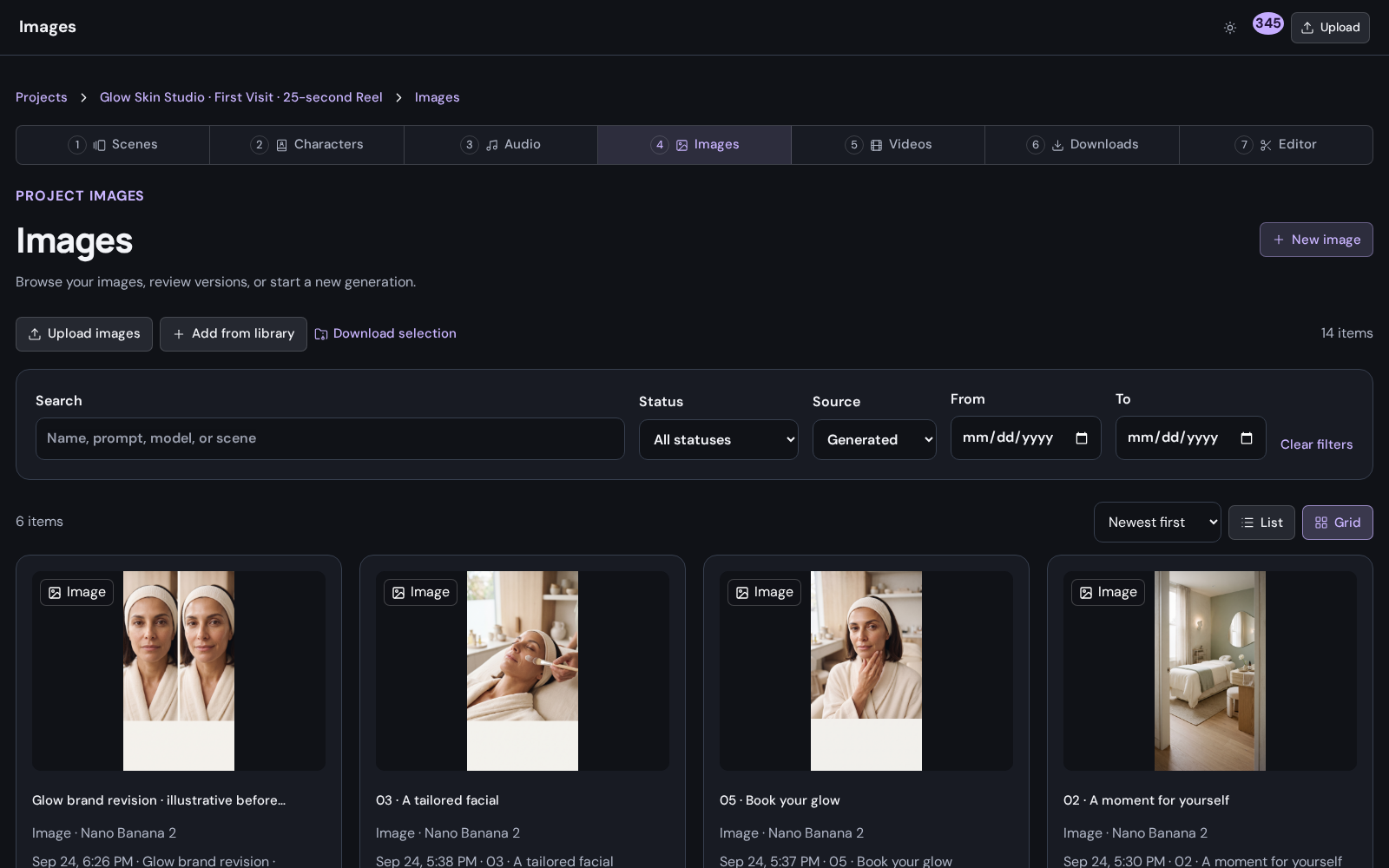
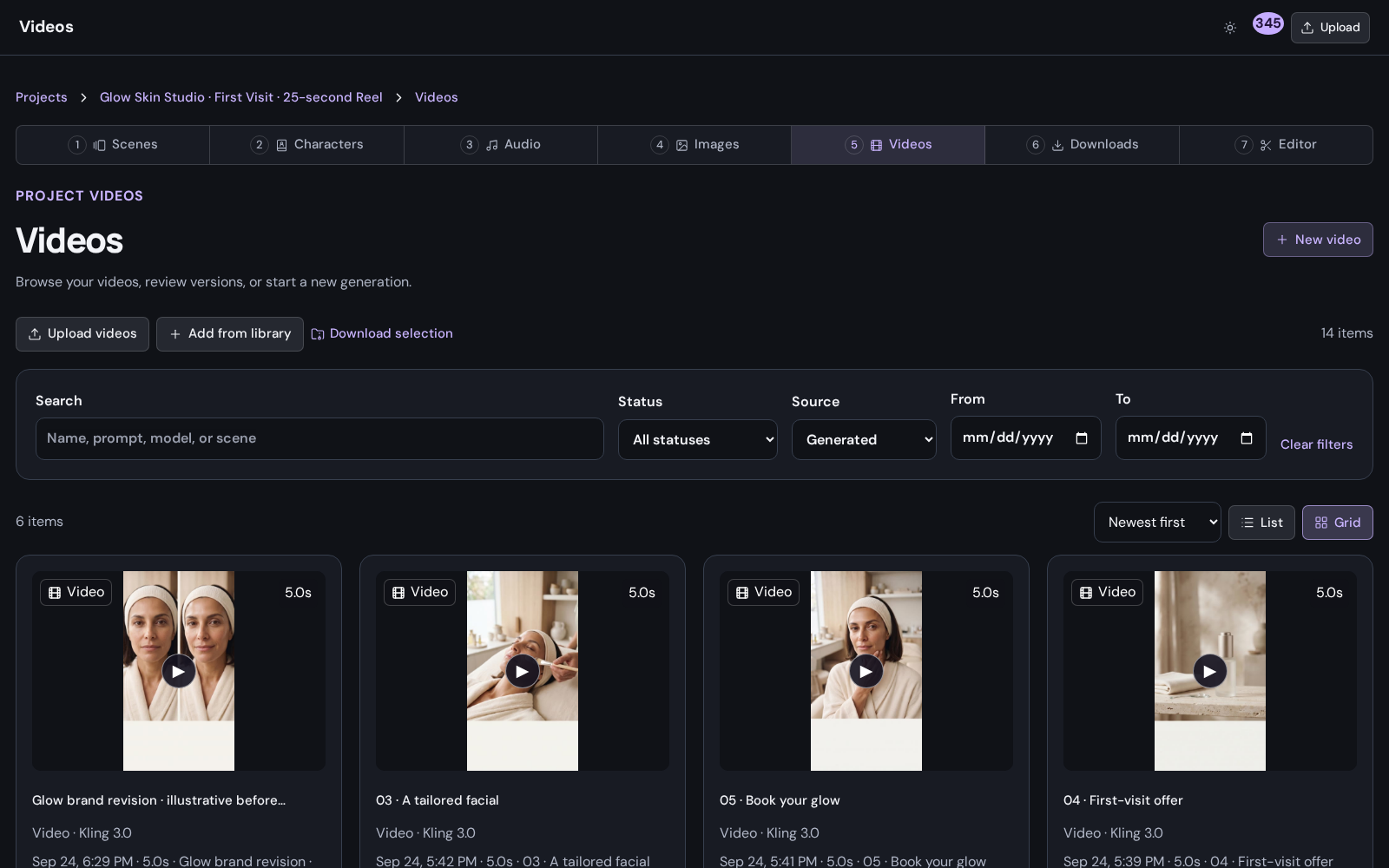
Generate a new image or clip without losing the earlier request. Review versions, select the result you want, and keep the scene's image, video, and audio choices separate.
03 / Scenes & storyboards
Select the scenes you want to produce, choose the generation path, and review the request count and estimate. Start with images, generate videos from chosen inputs, or use supported image-to-video batches.
Put it to work
Develop a visual direction, explore campaign imagery, and turn the selected assets into a short launch video.
Get startedIntroduce a service, explain a process, or make a studio's first impression with images, narration, and a clear next step.
Get startedReturn to the same creative material, develop a new angle, and deliver another version for your audience.
Get startedA little more detail
Find the practical next step in the Create guides, or talk to Mango9 about your workflow.
No. Add scenes individually and write a prompt for each shot. If you already have a script, use its moments to decide the scene order and enter the spoken words in Audio.
Adding a scene sets up its place in the project. Choose a model and submit a generation request separately when you are ready.
New generations remain separate versions. A first completed result can fill an empty selection; an existing selection stays until you choose another result.
Pricing varies by model, output type, and settings. Choose a model in Create to see its pricing, and check Billing and Usage for your balance and activity.
Make your next idea happen
Already using Builder? Continue with your Mango9 account.
Explore the Create guides