Mango9 Builder Studio
Projects and chats
Find saved work, keep discussions separate, and open the right workspace.
Projects contain an application, its development environment, build history, settings, and production relationship.
Chats contain standalone Ask conversations. They are useful when you want advice or product planning without changing an application.
Projects and chats can begin from similar ideas, but they preserve different kinds of work. A project owns an app and its development history. A standalone chat owns a conversation. Keeping that distinction clear prevents an early discussion from being mistaken for an application and helps you return to the correct place later.
Use descriptive names as soon as an idea becomes recognizable. The title appears in recent lists, search, and account pages, so a meaningful name saves time for everyone on the team.
Example: “Should we offer customer self-service?” is a useful Ask chat. “Customer self-service portal” is the project created after the team approves that direction.
Recent items
Studio home shows compact recent Chats and Projects. On mobile, expand either section to reveal its recent items. The heading links open the complete list.
Recent items are shortcuts, not the complete account history. The subtitle identifies whether an item is an Ask conversation or a project ready to continue. If two titles look alike, use that label and the icon before opening one.
Example: A recent conversation called “Wholesale pricing” may contain planning only, while a project with the same words contains the working quote portal. Open the project when you expect Preview and Build controls.
Project list
Console → Projects provides the account-wide view. Open a project to return to its Chat/Preview workspace. Status and last activity help distinguish active development from older work.
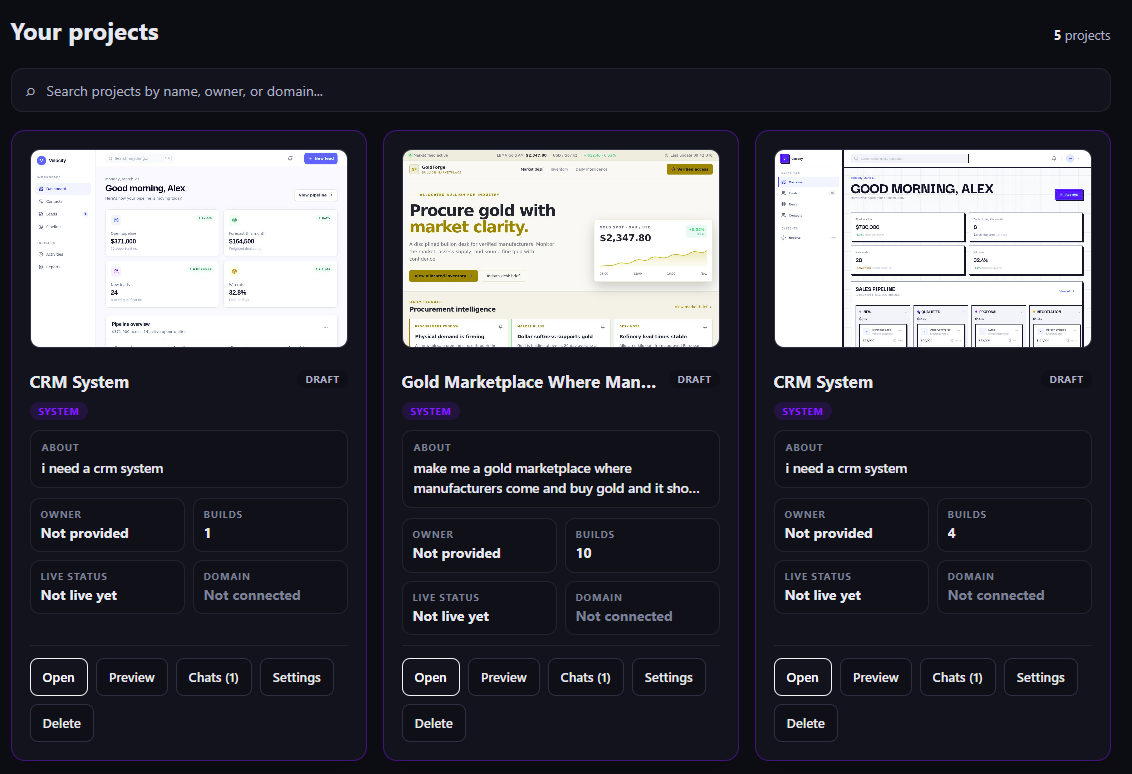
Each project card summarizes its current state and gives you direct ways to open the workspace, preview the app, open its chats, or change settings.
Enter the full Studio workspace for this project, including Chat and Preview. Use it when you want to ask about, build, or interactively review the app. Open the latest development app directly without starting a new request. A sleeping project may show a warm-up screen before the current version appears. See the conversations attached to this one project. Choose the relevant thread when several teammates or feature discussions have continued the same app. Manage project-specific variables, integration links, identity, and other available configuration. Confirm the project name before changing settings that affect credentials or runtime behavior. Permanently remove the project after the confirmation step and permission check. Review versions, downloads, production state, and domain assignment first when any part of the work may be needed later.
A Draft label means the project is still in development. Live status and Domain tell you whether customers can reach a published release.
Search by the language your team actually uses: project name, owner, or connected domain. The cards help answer three separate questions—what is being built, who is responsible, and whether a production release exists. A polished thumbnail does not by itself mean the app is published.
Deletion is permanent and broader than closing a conversation. Confirm that the project, saved versions, and development history are no longer needed. A separately owned domain may remain in the account and should be parked or reassigned intentionally.
Example: A card can show a finished-looking CRM preview while its status remains Draft and its domain says Not connected. Customers cannot use it until an authorized person publishes it.
Chat list
Console → Chats contains Ask conversations. A conversation can be copied or deleted according to the available controls and your permissions. Delete requires confirmation because it removes saved history.
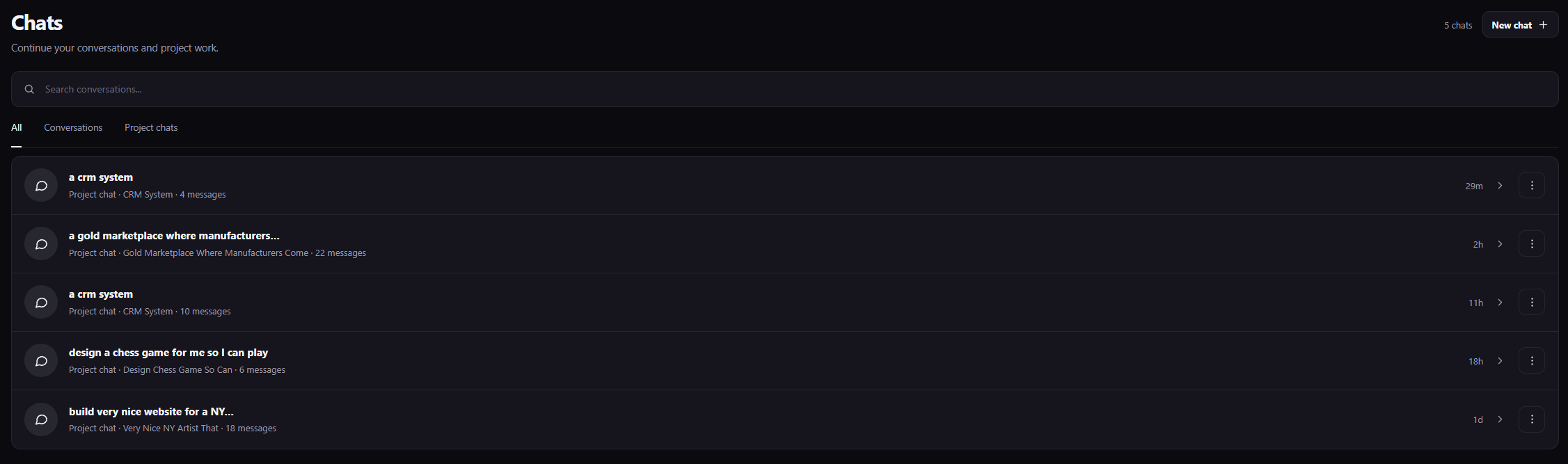
Search across saved conversations or narrow the list to standalone conversations and project chats.
Show every standalone and project conversation available to your current role. Use search when you know the topic but not which kind of chat contains it. Show standalone Ask discussions that are not yet tied to an app. These are useful for research, comparison, and planning before implementation. Show conversations that continue an existing application. Opening one returns you to the relevant project context, where Build can change that app. Start a separate Ask conversation without changing an existing project. Use this for a new topic or early idea that should not enter a project history yet. Open the copy and delete choices available for that conversation. Confirm the title and type before deleting because saved discussion history cannot be treated like a temporary pop-up.
Search conversations by topic, then use the filters to separate independent advice from project work. A project chat can influence its attached app when you use Build. A standalone conversation remains discussion until you deliberately turn the agreed idea into a project.
Copy is useful when you want a separate discussion that begins with similar context. Delete removes the saved conversation, so use it for disposable or incorrect chats rather than as a way to organize important decisions.
Example: Filter to Project chats when you need the conversation that produced version 6 of the Retail CRM. Filter to Conversations when you need the earlier discussion comparing CRM permissions.
Turn an idea into a project
If an Ask conversation reaches an implementation decision, use its build action. Mango9 carries the relevant conversation forward so the project can enter the normal brief/build path.
Review the direction before making the transition. The conversation may contain alternatives you rejected, so the final message should identify the chosen outcome and any firm boundary. The new project can then ask brief questions and build from the decision without requiring you to paste the full chat.
Example: “Build the appointment-reminder option we chose: email 24 hours before the visit. SMS and customer accounts are out of scope for the first version.”
Naming
Rename projects and conversations so they describe the outcome, not the first message. “Wholesale quote portal” is easier to find than “hello” or “new project.”
Include a client, department, or purpose when your account contains similar work. Avoid putting passwords, private customer records, or temporary status notes in a title because names are shown throughout the workspace.
Example: Prefer “Northstar sales CRM” and “Northstar support portal” over two projects both called “Northstar app.”
A recent chat and a recent project can have similar titles. Look for the chat icon vs project icon and the “Ask conversation” vs “Ready to continue” label.