Mango9 Builder Studio
Team and security
Invite the right people and grant only the permissions they need.
Team access lets more than one person work with the account without sharing one password.
Each teammate signs in with their own identity, receives a role, and can be limited to the projects their job requires. This makes collaboration easier to understand and safer to audit than passing an owner login between people. The account owner can change access without resetting everyone else's credentials.
Plan team access around responsibilities rather than seniority alone. A trusted developer may need broad project access without billing authority, while a finance teammate may need invoices without permission to edit an app.
Example: Invite a freelance designer as a Builder on one marketing project instead of giving them the owner's login and access to every client, invoice, and production app.
Invite a teammate
- Open Console → Team.
- Enter the person's work email.
- Choose the appropriate role.
- Send the invitation.
- Ask the recipient to complete their own account setup.
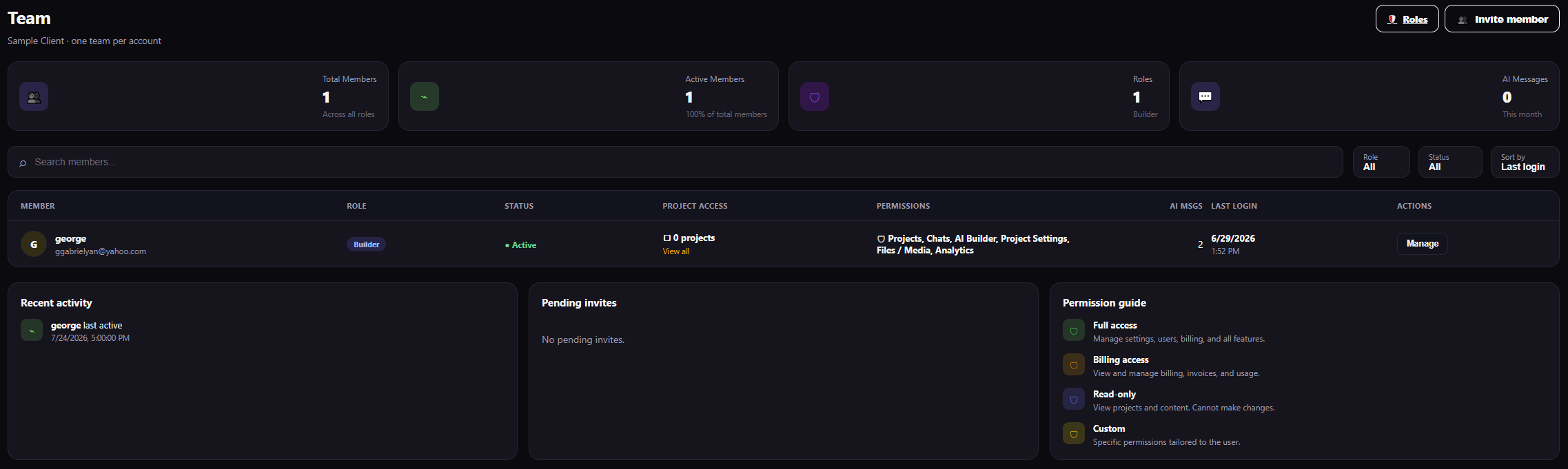
Team shows who can enter the account, which role they have, which projects they can reach, and the permissions currently assigned.
Send an invitation to the person's own work email so their activity remains attributable. Select the intended role and project access before sending, then wait for the recipient to complete account setup. Review the account's role presets and the individual permissions behind each name. Edit a preset deliberately and follow the page guidance for applying changes to members who were assigned earlier. Change one member's role, selected-project access, or account status. Use this when responsibilities change, access needs correction, or a former teammate should no longer enter the account. Limit a teammate to the projects required for their job instead of exposing the entire account. Combine this with action permissions so project visibility and operational authority both match the responsibility.
The exact role list is controlled by your account. Permissions can distinguish project building, publishing, billing, team administration, domain operations, and support access.
Use the person's own work email so invitations, sign-in activity, and future access changes stay attributable. Choose the closest role preset, then narrow project access when the person works with only part of the account. The invitation is not complete until the recipient finishes their own setup.
After the teammate joins, test the real job they were invited to do. Being visible in Team proves membership, but a quick role check confirms they can open the intended project and cannot reach restricted controls.
Example: A sales operations contractor should be able to build inside “Sales CRM,” but receive Forbidden when attempting to open Billing if that permission was not granted.
Role presets
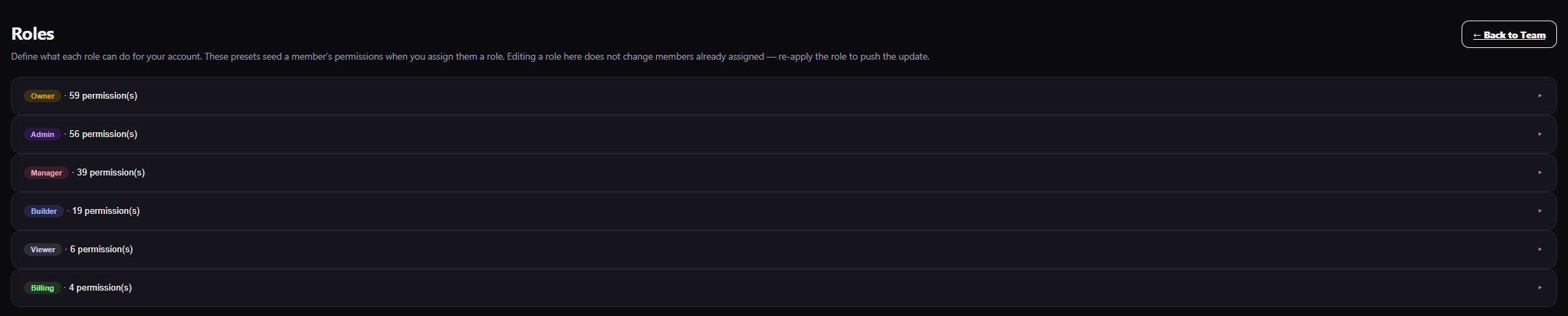
Open a role to see its individual permissions. The number beside each role is the count of permissions in that preset.
Role names are starting points, not job titles that grant identical access everywhere. Review the individual permissions before assigning a role. If you edit a preset, follow the on-screen guidance for applying it to existing members.
A preset makes repeated assignments consistent. It does not remove the need to review sensitive permissions such as billing, team administration, domain ownership, production operations, and access to all projects. Read the permission count and open the role when the consequences matter.
Changes to a preset may not silently rewrite members who were assigned earlier. Follow the page instructions for reapplying or updating the role so existing teammates receive the intended policy.
Example: If the Builder preset is changed to include publishing, verify whether current Builders must be reassigned before assuming they can publish.
Least privilege
Give each person only what their job needs.
- A builder may need project editing but not billing or team administration.
- A finance role may need invoices and costs but not source changes.
- Support may need approved client-view/impersonation access without platform administration.
- Only trusted owners/admins should manage high-impact production or account controls.
Review roles when a job changes and remove access promptly when someone leaves.
Least privilege does not mean making work difficult. It means giving a person every permission needed for their responsibility and withholding unrelated high-impact controls. Start with the closest preset, test the intended workflow, and add a missing permission deliberately rather than defaulting everyone to Owner.
Project-level access is just as important as action permissions. A teammate who builds one client's app should not automatically see other clients' projects merely because they use the same Builder role.
Example: Give an accounts-payable teammate invoice and billing access, but no project editing, environment-variable, or production-decommission permissions.
Account and application security are different
- Team protects access to Mango9 and its account controls.
- Application Security reports/security-controls the app you are building.
- The app's own user roles govern the customers or staff inside the published app.
Do not assume a Mango9 teammate automatically becomes an end user in a client application, or the reverse.
These layers solve separate identity problems. Mango9 Team decides who can operate the building platform. The published app's authentication decides who can use the product you created. Application Security reports concerns about that app. Adding a person in one layer does not automatically add them in another.
Example: A clinic manager can be an Admin inside the published scheduling app while having no Mango9 account at all. A Mango9 Builder can edit that app without becoming a clinic user.
Safe support practice
When support access is authorized, use the built-in account/client access flow so the activity is attributable. Do not ask a customer for their password.
Authorized support views should preserve the acting staff identity and the client context. Confirm the client name before making any allowed change, end the support session when finished, and ask the account owner to reproduce restricted operations when support does not need that authority.
Example: Support can inspect a client's project after the client authorizes access, but the client should perform their own payment confirmation instead of sharing a card or password.
Basic security habits
- Use a unique password and protect the connected email account.
- Never share session links or one-time handoff URLs.
- Keep secrets in Environment Variables.
- Use scoped external-service keys and rotate them after exposure.
- Confirm project and production identity before destructive operations.
- Review unexpected logins, team changes, domain changes, and billing activity.
Security is strongest when ordinary account work remains attributable and reversible. Use individual logins, name projects clearly, keep recovery email access protected, and remove stale invitations. When a secret is exposed, rotate it with the external provider and update the saved integration rather than merely deleting the chat message.
Example: If an API key appears in a screenshot, revoke that key, create a scoped replacement, save it in Environment Variables, and remove the unsafe image from future documentation.
Hiding a button is not the security boundary. Mango9 checks permissions again on protected operations such as publishing, billing, team administration, and production controls.