Mango9 Builder Studio
Select, Brand, Style, and SEO
Point to the right place and give Mango9 focused visual direction.
These tools add useful context to your next Build request. They do not make the change by themselves, and they never publish the app.
Use them when a normal prompt would leave too much room for interpretation. Select identifies one rendered element. Brand communicates identity. Style communicates the visual system. SEO focuses on how public pages are described and structured. The prompt remains the place where you state the desired outcome and boundaries.
You do not need to use a visual tool for every build. A data-only or server-side change may require no visual context at all. Choose the smallest tool that makes the request clearer.
Example: Use Select for one crowded footer. Use Style for a consistent spacing and shape update across the whole app. Use neither when the request only changes an internal API calculation.
Select an element
Use Select when the change is about one visible part of the app.
Navigate to the exact state before selecting. Open the menu, dialog, expanded card, or mobile layout where the issue appears so the selection carries the right visual context. Selecting a hidden or unrelated parent can make a narrow request look broader than intended.
After the selection card appears, name the device and the desired behavior. Selection answers “where”; your words still answer “what” and “what must stay unchanged.”
Example: Open the mobile filter panel, select its Apply button, and write, “Keep this visible above the phone keyboard without changing the desktop filter panel.”
Navigate to the exact screen where the element appears. The Preview enters selection mode. Mango9 places a selection card above the composer. Say what should change, on which screen size, and what should stay the same. The selection travels with the prompt so the builder can inspect the right area.
Focused selection request
On mobile, make this customer card a compact one-line row. Keep the avatar,
name, status, and menu. Do not change the desktop layout or any other card.
Brand
Brand is for the identity that should feel consistent everywhere: logo, brand colors, typography direction, and shared visual details.
Use Brand when the project should recognize and reuse a real identity, not simply when one button needs a different color. Supply approved assets and explain which choices are fixed. Mango9 can then apply a consistent visual language without rewriting product content or behavior.
Good brand direction includes practical boundaries: which logo variant to use, primary and supporting colors, the desired personality, and accessibility expectations. Avoid asking the app to imitate another company's identity.
Example: “Use our supplied horizontal logo in the header and the icon mark on mobile. Navy is primary, mint is an accent, and all text must remain readable on white. Keep the existing page content and routes.”
Brand direction
Use the uploaded logo as the real brand asset. Keep the current page wording and features. Build the color system from the navy and coral in the logo, with accessible contrast on buttons and forms.
Style
Style changes the overall presentation—spacing, shape, density, shadows, type scale, and visual rhythm—while the prompt tells Mango9 what must be preserved.
Style is broader than Select and narrower than rebuilding the product. It can make existing screens feel calmer, denser, more editorial, or more utilitarian while keeping the same features and data. State whether the direction applies to one page or the shared application system.
Name the qualities you can observe rather than relying only on labels such as “modern.” Density, contrast, border treatment, type scale, and spacing rhythm give Mango9 a concrete design target.
Example: “Apply a compact operations-dashboard style to all existing admin pages: smaller vertical gaps, clear section headings, quiet borders, and no decorative gradients. Preserve brand colors and every workflow.”
Safe style update
Apply this style to typography, spacing, card shapes, shadows, and visual
hierarchy. Preserve all wording, routes, features, data behavior, images,
and brand colors.
SEO
SEO helps public pages explain themselves to search engines and social links. It can improve page titles, descriptions, heading structure, and sharing information. It cannot make a private or unfinished page ready for the public—review and publish intentionally.
Use SEO for public, indexable content whose audience and purpose are known. Give each important route a specific topic instead of repeating the same title and description everywhere. Private dashboards, account pages, and authenticated workflows should not be made public merely to satisfy an audit score.
SEO also benefits people. Clear headings, meaningful page titles, and useful descriptions make a site easier to scan and more understandable when shared.
Example: “Optimize
/services/wedding-photographyfor couples comparing wedding photography in Pasadena. Keep the approved pricing and testimonials, and give the page a unique title and description.”
Visual proof
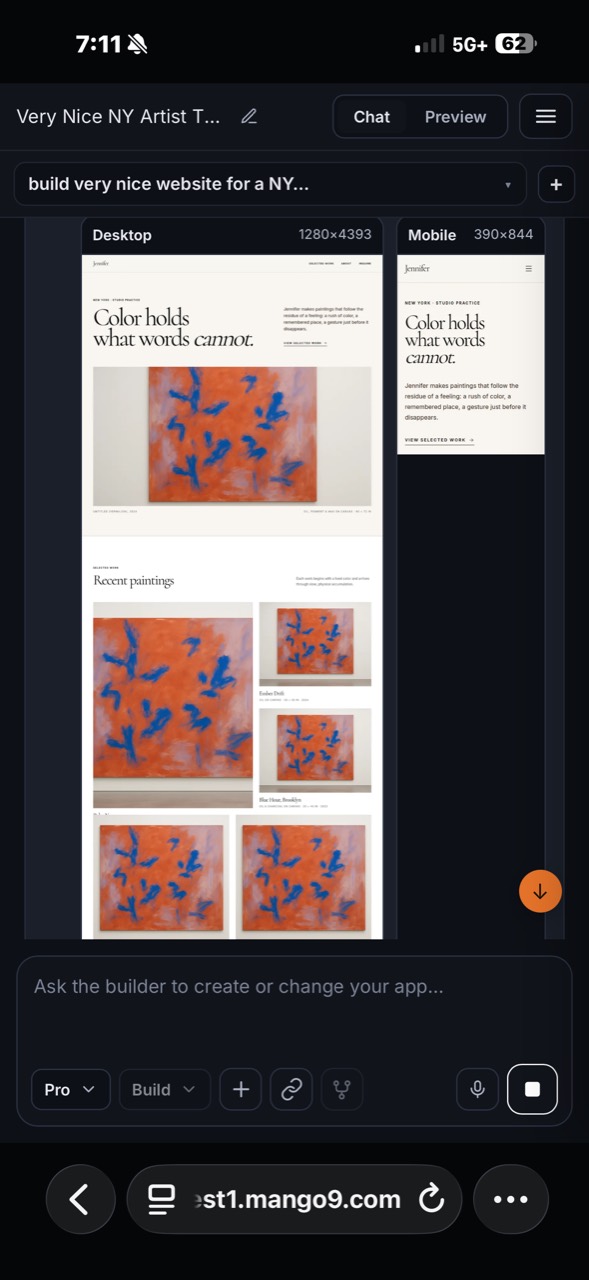
After a visual build, the completion area can show the exact desktop and mobile surfaces that were reviewed.
Visual proof is selected according to what changed. A first visual build or a genuinely responsive change may need both desktop and mobile. A desktop-only adjustment may need one desktop capture. A non-visual change can finish without a screenshot, keeping the completion focused on the evidence that matters.
Use proof to compare the result with your acceptance criteria. Check the affected area, important surrounding context, and whether a fix introduced a new overlap or missing state. A beautiful screenshot does not replace trying the real interaction in Preview.
Example: A mobile navigation repair should show the opened mobile menu. A server-only email retry change does not need a decorative homepage screenshot.
Name the page, device, visible problem, desired result, and the correct area that must not change.