Mango9 Builder Studio
Project workspace
Use Chat, Preview, the composer, and completion controls with confidence.
The project workspace puts the conversation and the development app together. Building can change Preview; customers do not receive those changes until you publish.
Every project workspace belongs to one app and carries its own conversation history, files, development server, versions, and Preview. Check the project name before sending work, especially when you manage similar apps. A request sent here continues this project; it does not create a separate copy unless you deliberately start a new project.
Use Chat to state intent and review the durable result. Use Preview to behave like the person who will use the app. Moving between them is part of normal work and does not interrupt a build that is already running.
Example: Send “Add a customer status filter” in Chat, then open Preview and confirm the filter changes the visible customer list without losing the current search.
Chat and Preview
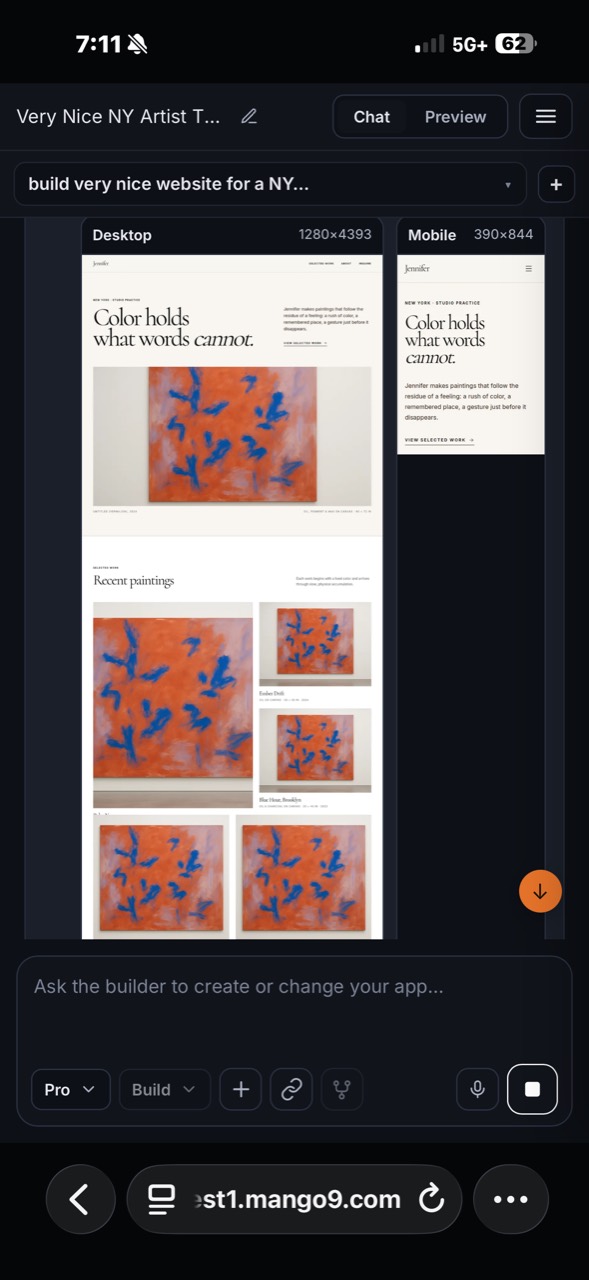
Chat records the work. Preview is the app itself. Visual proof can show both desktop and mobile results in the conversation.
Chat contains your requests, short progress updates, visual proof, completion summaries, versions, and recommended next steps.
Preview is the current development app. Open pages, press buttons, and try the important workflow before publishing.
Chat and Preview answer different questions. Chat tells you what was requested, what evidence was collected, and which version was saved. Preview tells you whether the app is currently usable. A completion summary can guide your review, but you should still press the important controls and confirm the real outcome.
Preview may update while a build is working, so a half-finished screen is not necessarily the final result. Wait for the completion card before judging the full request, then refresh the Preview control if you need the newest rendered state.
Example: If a CRM build adds Contacts, Leads, and Deals, use the final Preview menu to visit all three routes and create one sample lead. Do not approve the work only because their names appear in Chat.
The project composer
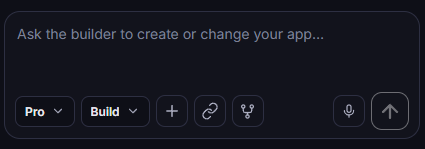
This composer continues the selected project. It has a few more tools than the Studio home composer.
Choose the available level for this turn. The default balances ordinary work; select a deeper level when a difficult repair or broad reasoning task genuinely needs it. Ask discusses or explains the current project without intentionally changing it. Build authorizes creation or durable changes that should be visible in the project afterward. Add a screenshot, image, or supported document that clarifies the request. Explain whether it supplies evidence, approved content, an asset, or visual direction. Capture a website URL as a visual reference for the current message. Say which qualities to borrow and which parts of your existing app must remain. Copy this conversation context into a separate chat for the same project. The chats can follow different discussions, but both still edit the same underlying app rather than creating independent copies. Turn speech into text in the composer for a faster hands-free request. Review names, numbers, route paths, and product terms before sending the transcription. Submit the current request once it is ready. During an active turn it changes to Stop, which ends that turn rather than temporarily pausing it.
The composer keeps the most common decisions close to the message. Choose the model and Ask/Build mode first, then add references only when they clarify the request. The text field should describe the outcome even when an attachment, selected element, or website reference is present.
On mobile, some advanced workspace tools move into the gear menu so the composer remains usable. That changes where the controls appear, not what they do or which project receives the message.
Example: Choose Ask and type, “Explain how the current lead scoring works.” Switch to Build only when you are ready to say, “Change the score so an overdue follow-up lowers it by 10 points.”
A fork is useful when you want a separate line of discussion. It does not create a second copy of the project, so both conversations can still change the same app.
Ask and Build
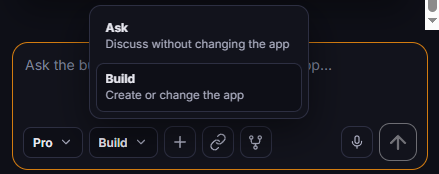
Choose Ask when you want an answer. Choose Build when you want the project to change.
Ask is the safer choice when you are still deciding, investigating, or learning. Build is the correct choice when success means the project looks or behaves differently. You can move an agreed Ask conversation into Build without manually recreating every useful detail.
Example: Ask, “Which two reports would help this store manager most?” Build the chosen answer later: “Add daily sales and low-stock reports, using the existing store data and navigation.”
Model levels
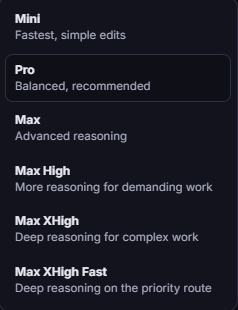
Pro is the balanced recommended choice. Use a faster or deeper level when the job calls for it.
You can change the model before sending. A higher level is useful for difficult reasoning or a broad repair; a smaller level can be a better fit for a quick, simple edit.
Start with the default level unless the work clearly needs another balance of speed and reasoning. The model changes how the turn is handled; it does not change the project, permissions, or selected mode by itself. The model menu shows the current choices available to your account.
Example: A copy correction or one small spacing issue can fit the default fast level. A difficult cross-page permission repair may benefit from a deeper reasoning level.
While a build is running
- The send arrow becomes a square Stop button.
- The preview may refresh several times as work is saved.
- Progress updates describe the current task; they are not the final result.
- Do not send the same request again just because a quiet step takes longer.
- Stop when the request was wrong or you no longer want the work to continue.
Keep the workspace open when convenient, but you do not need to interpret every progress message as an action request. Mango9 may read project context, update several related surfaces, and verify the result before the final card appears. Sending duplicates can create competing work and makes the history harder to follow.
The Stop button is a deliberate interruption, not a pause-and-resume control. Use it when continuing would be worse than ending the current turn. If you only want to add another improvement, let the active build finish and send the next focused prompt afterward.
Example: Stop immediately if you selected the wrong project. Do not stop simply because an image generation or verification step has been quiet for a few minutes.
When a build finishes
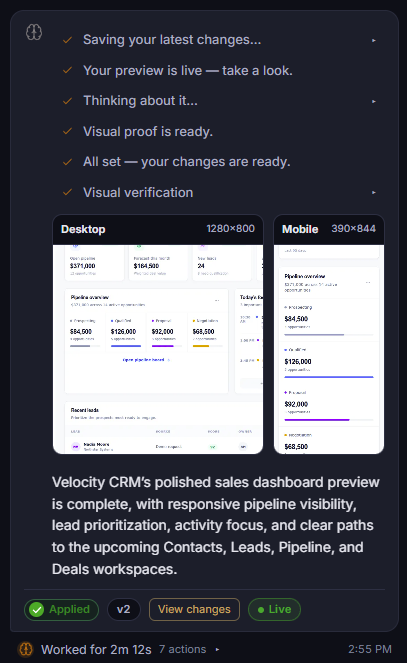
Use the saved result and version controls as the handoff from Mango9 to you.
Useful durable changes were saved to the project. The status confirms work exists; the summary and Preview help you decide whether it meets the request. Identify the saved result associated with this completed turn. Refer to the number when comparing work, reviewing history, or reporting a precise problem. Open a readable list of files and lines changed in the version. It explains durable scope without requiring you to read every project file. Inspect an older saved result without immediately replacing the current project. Use it to compare behavior and appearance before deciding whether to restore. Create a new current state from the selected older version. Restore only when that whole saved result is the baseline you want, because later project changes can be replaced. Mark the version currently shown in development Preview. Live here means active in development, not published to the customer production address.
Review the controls in order: status, summary, visual evidence when relevant, version, and Preview. Applied means durable work was saved, but your product review still matters. View changes explains scope; Live refers to the development version currently shown, not a production deployment.
If the card says Answered or No changes, do not expect a new version merely because the conversation continued. If it says Needs attention, read the named issue and inspect the actual project before deciding whether to retry or restore.
Example: A completed card shows Applied, v4, and Live. That means v4 is the current development result. Customers still see the last published production release until you press Publish.
Build details
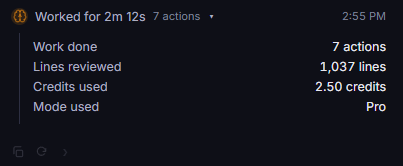
Open the Worked for row when you want a quick usage summary for that turn.
Work done counts completed project actions. Lines reviewed shows how much project material the builder inspected. Credits used is the charge for the turn. Mode used records the selected public model level.
These figures help explain the size of a turn but are not a quality score. A small visible change may require reading shared navigation, permissions, and responsive styles before it can be made safely. A large number of reviewed lines does not mean all those lines were changed.
Example: Fixing one menu item can review many shared layout files while changing only two. View changes shows the durable edits; Lines reviewed shows the surrounding material inspected.
App Map
App Map is a visual guide to the current app. Experience shows pages and routes; Architecture shows larger modules and their connections. It is especially helpful when a project becomes too large to understand from one Preview screen.
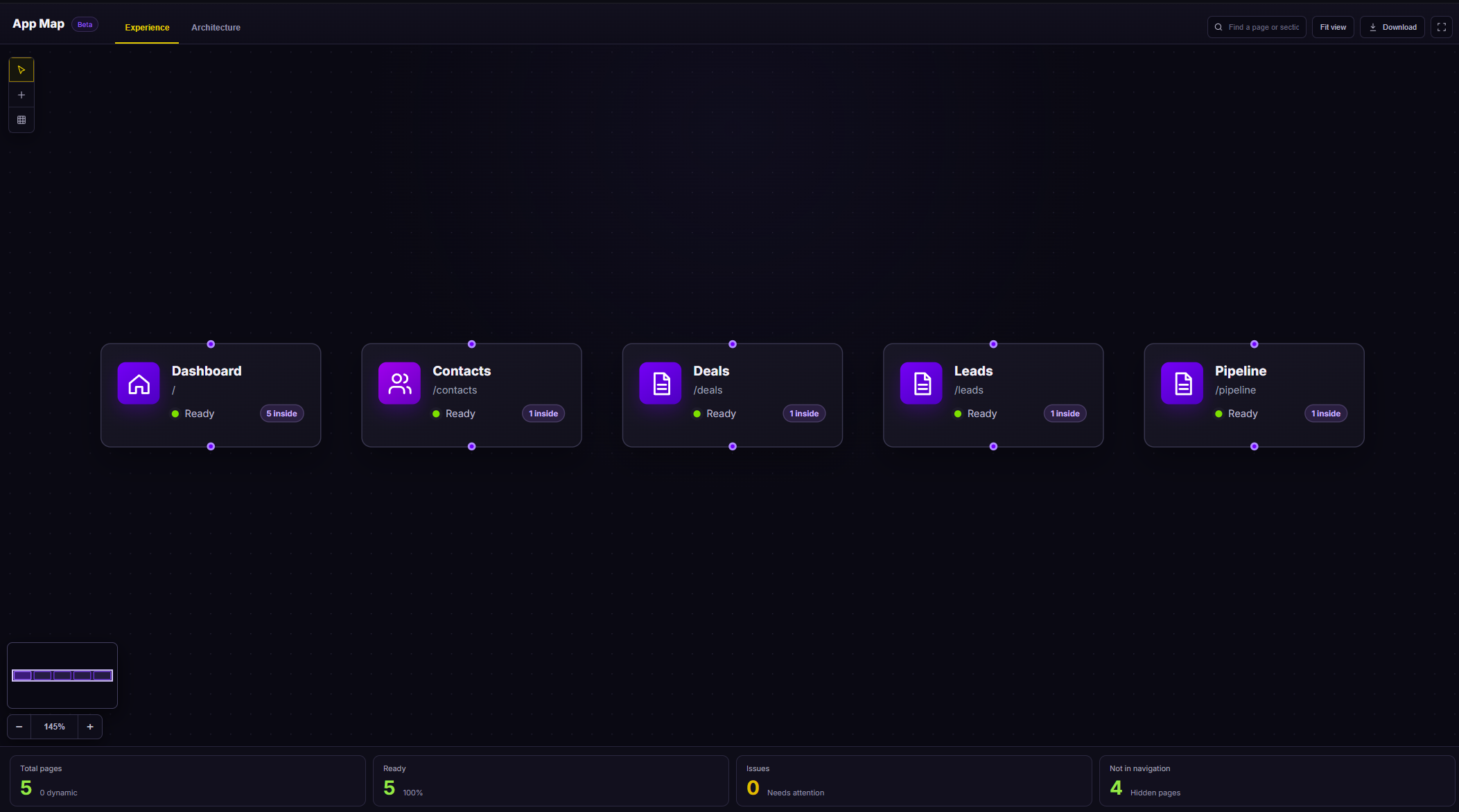
Search, fit the map, select a page, or download the current map from the controls at the top.
Use Experience to check routes and user-facing navigation. Use Architecture to understand larger groups, modules, and connections. The map reflects discovered project structure, so it is a useful companion to Preview when a page exists but cannot be reached through the app's menu.
Example: Experience lists
/leadsas Ready, but Preview navigation has no Leads item. Request a focused shared-navigation repair rather than asking Mango9 to recreate the Leads page.
Code view
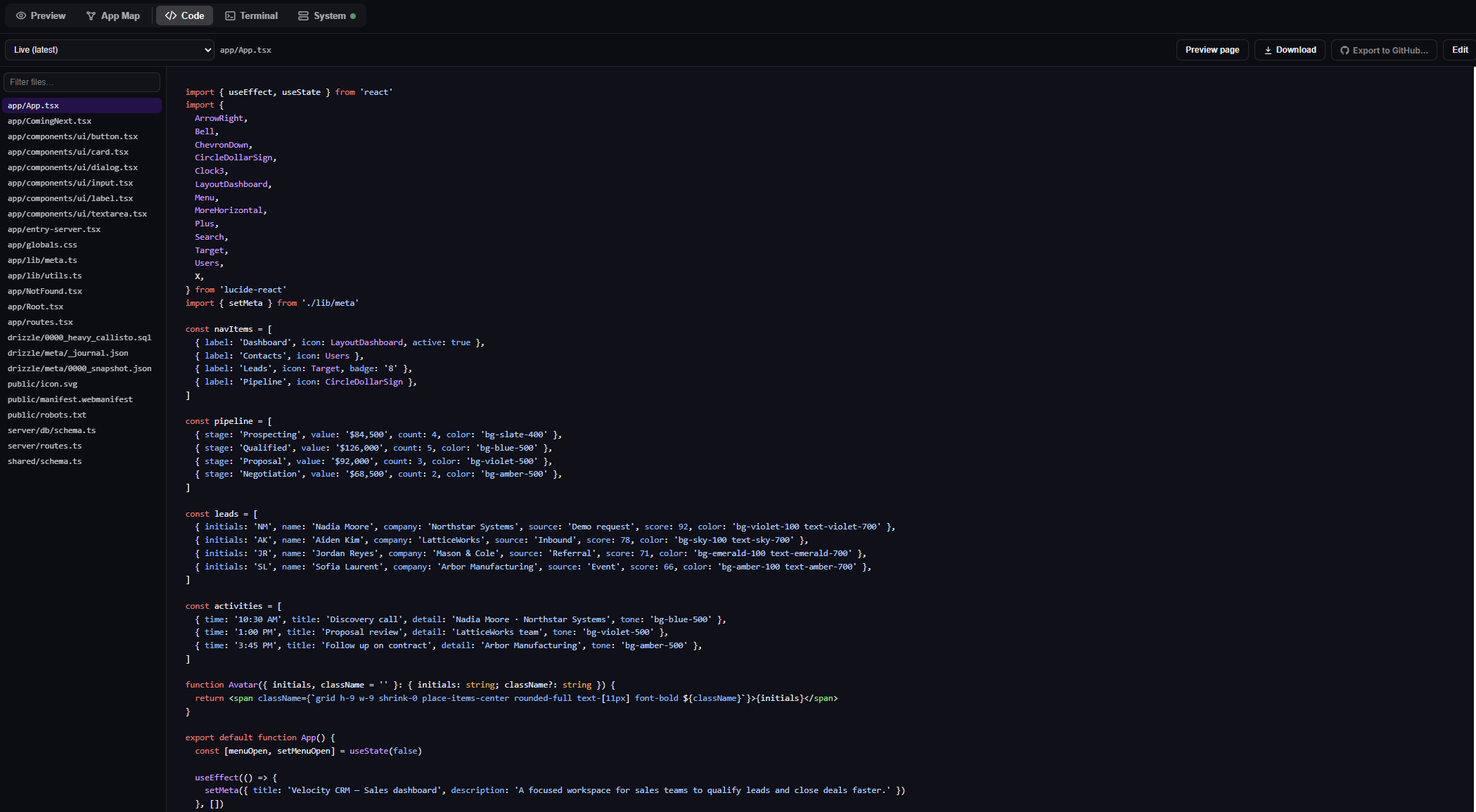
Code view is for inspecting the project's current files. Select a file on the left and read it on the right.
Choose the current development result or another available saved version to inspect. Changing the inspection target does not silently restore or publish that version. Find an application file by name without scrolling through the full project tree. Select the result to read its saved source in the main pane. Return from code inspection to the running page represented by the project. Use Preview to confirm the behavior rather than judging the app only from source. Download the project when the role, plan, and project state permit it. Store the copy securely because it can contain application logic and project assets. Send the project to a chosen repository after reviewing the owner, destination, branch, and permissions. Export is explicit and should not be assumed merely because a GitHub account is connected. Open the advanced manual editor when you intentionally want to maintain code yourself. Prefer a focused Build prompt when you want Mango9 to inspect surrounding behavior and verify the completed change.
Code view is optional for normal product building. It is most useful when an advanced user wants to inspect a specific saved result, download the project, or connect an external development workflow. Reading a file does not change it; use Edit only when you intentionally accept responsibility for a manual code change.
Project guidance and platform-managed files may be hidden from the customer file list even though Mango9 uses them internally. The visible list is meant for application source and assets, not for credentials or platform operations.
Example: Use Filter files to find
routeswhen you are confirming whether a page exists. Use a Build prompt when you want Mango9 to add the route and verify the surrounding navigation safely.
System and server controls
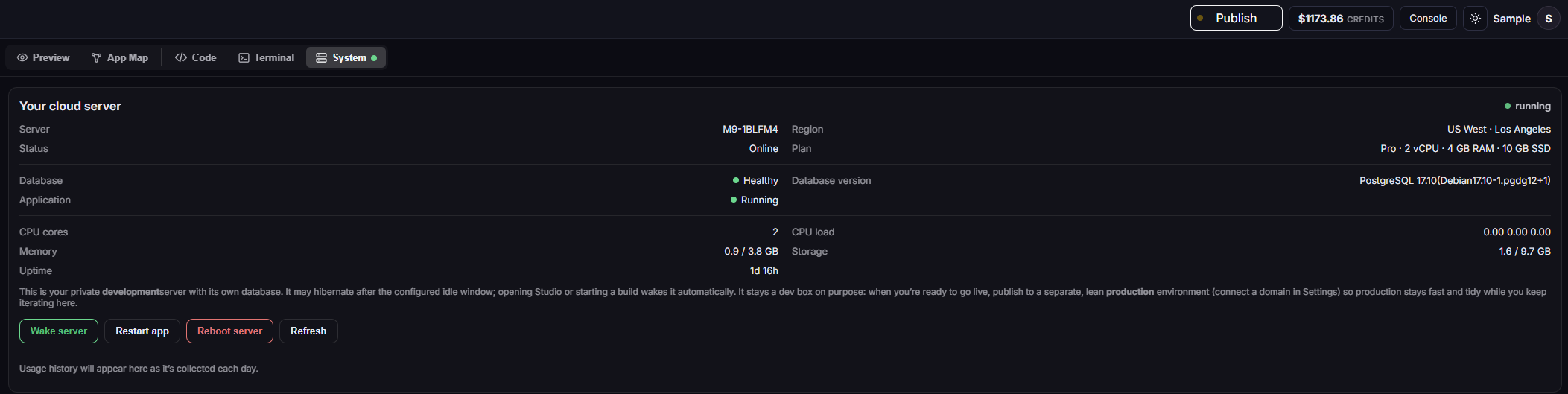
System summarizes the current development server. Status lights tell you whether the server, app, and database are available.
Use Wake server for sleep, Restart app for an application problem, and Refresh to fetch the latest status. Reboot server is broader and should be the last choice because it restarts the entire development environment.
Choose the narrowest operation that matches the problem. Refresh only reads the latest status. Wake starts an asleep environment. Restart app reloads the application process without restarting the whole development server. Reboot server interrupts more services and should not be the first response to a page-level defect.
These are development controls. They do not restart the separate production app customers use. Production operations live in Production Cloud and have their own confirmations and permissions.
Example: If the server is Online but the app reports an application error, use Restart app. If the server is Asleep, use Wake server instead of Reboot server.
If Preview was sleeping
The first visit may show a warm-up screen. Keep the project open while Mango9 wakes it. If the app still does not appear after the warm-up completes, refresh once and see Troubleshooting.
Warm-up is normal resource management, not evidence that the project was deleted. The Preview loader should transition to the app when the server and application are reachable. On a phone, keep the Preview tab active long enough for the transition rather than repeatedly reopening the project.
If a build completion card already contains visual proof, that evidence can confirm the app rendered during verification, but your interactive Preview still needs a healthy session. Record the project ID, time, device, and visible loader message when the transition repeatedly fails.
Example: Open an asleep project, leave the warm-up screen open, and wait for the app. If Development Cloud shows Online while the loader remains for an extended period, refresh once and capture that mismatch for support.
Preview can sleep and can show work in progress. Publish creates the separate live release customers should use.